
Signing in to MOVE
The MOVE sign-in page at move.tomtom.com/login offers three ways to sign in. This page explains which one is for you and what to do when something does not work.
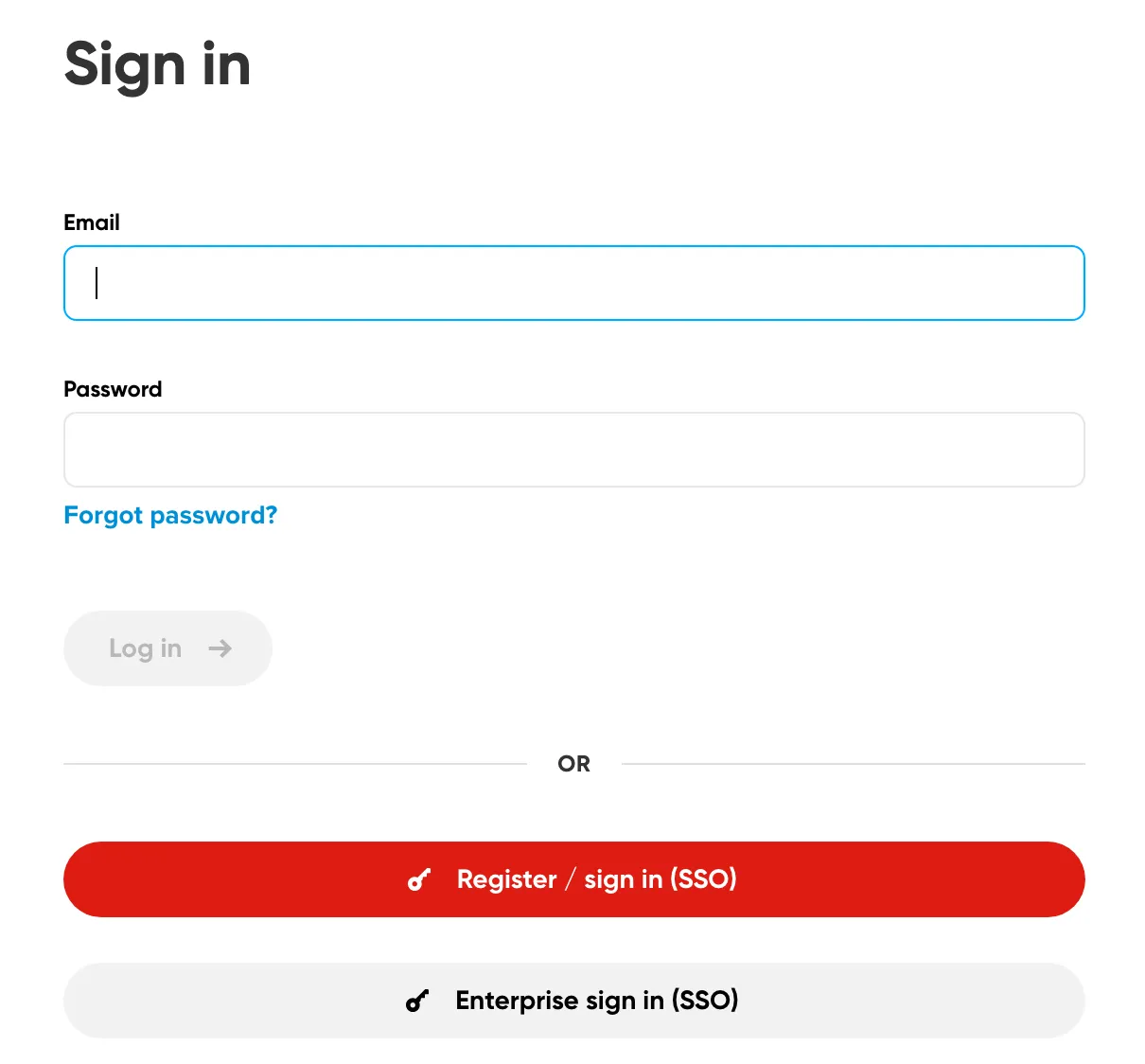
Which option is for me?
| You | Use |
|---|---|
| You already sign in to MOVE with an email and password. | The email and password form at the top of the page. You do not need to do anything else. Use Forgot password? if you need a new password. |
| You have a TomTom account (my.tomtom.com), or you are new to MOVE. | The red Register / sign in (SSO) button below the form. |
| You are a TomTom employee, your company uses TomTom single sign-on, or TomTom invited you as a guest user. | The grey Enterprise sign in (SSO) button under the red one. If you try the red button instead, you will get an error. |
Creating a TomTom account
- On the sign-in page, click the red Register / sign in (SSO) button below the form.
- On the TomTom account screen, choose No account? Create one.
- Register with your work email address. Personal addresses such as gmail.com are not accepted for MOVE, even though the account screen shows a Sign in with Google option.
- Follow the steps on the screen to confirm your email address and set a password.
No Microsoft account is needed.
Was your account created by a distributor or by TomTom? You received the email “Your TomTom MOVE account is ready”. Follow the steps above and register with exactly the email address from that email. MOVE recognizes you by that exact email address.
Troubleshooting
It says “We couldn’t find an account with this email address”
You most likely have a MOVE email and password. The two buttons below the form do not know that password. Go back to move.tomtom.com/login and use the form at the top. If your account was created by a distributor or by TomTom and you have no password yet, see Creating a TomTom account. Are you a TomTom employee, does your company use TomTom single sign-on, or did TomTom invite you as a guest? Use the grey Enterprise sign in (SSO) button under the red one.
I forgot my MOVE password
Click Forgot password? under the password field. You will receive an email with a link to set a new password.
MOVE rejected my personal email address
MOVE accepts work email addresses only. To try again with a different address, open a private (incognito) browser window and start from move.tomtom.com/login. In a normal window the TomTom account screen remembers the last account you used.
I cannot switch to another account
The TomTom account screen remembers the last account you used. Open a private (incognito) browser window and sign in again from move.tomtom.com/login.
I see “Failed to fetch” when creating an account in Microsoft Edge
We are looking into this. In the meantime, please try another browser.
I am a distributor. How do my customers get access now?
You create users in MOVE as before. The user receives the email “Your TomTom MOVE account is ready” and must create a TomTom account with exactly that email address. The company name a user types when creating the account is not your MOVE organization. The organization you assigned stays.
Will the email and password form be switched off?
At a later stage, yes: the TomTom account will become the only way to sign in. There is no date yet. We will tell you the date and the steps in advance. Until then, the email and password form keeps working and you do not need to do anything.
Need help?
If you are signed in, use the Contact us form in MOVE. If you cannot sign in, email us at MoveSupport@tomtom.com.