
UI workflow guide
Request accessUI workflow guide
This guide walks you through the complete workflow of using GEM via the web interface, from uploading data to downloading your matching results.
Workflow overview
- Access GEM dashboard — Log in at my.tomtom.com → Select project → Open GEM
- Upload data — Prepare data → Authorize → Upload via Azure CLI
- Trigger matching — Configure job parameters → Submit
- Monitor progress — Track job status in dashboard
- Download results — View details → Download via Azure CLI
Step 1: Access GEM dashboard
- Navigate to my.tomtom.com
- Log in using your Microsoft Entra ID credentials
- In the left navigation panel, select the appropriate Project from the dropdown menu
- Click on Global Entity Matcher in the sidebar
What you’ll see:
- List of previous matching jobs (empty for new users)
- Prepare Data + button for uploading new data
- Trigger matching button to start new jobs
- Search and filter capabilities for job history
Step 2: Prepare and upload data
2.1 Initiate upload process
- Click the Prepare Data + button on the dashboard
- The “Upload Data” modal window will appear
2.2 Select storage
In the “Select Storage” step:
-
Storage Name: Select your target storage from the dropdown
- If you have access to only one storage, it will be pre-selected
- Multiple storages: choose the appropriate one for your project
-
Click Next to proceed

2.3 Authorize storage access
The authorization step provides credentials for Azure CLI access.
- Click the Unwrap button when prompted
- Review the security warning about displaying sensitive credentials
- Click Unwrap again to confirm
- The command will auto-populate with your credentials
- Copy the complete
az logincommand - Open your terminal and execute the command
Command example:
az login --service-principal \ --username <client_id> \ --password <client_secret> \ --tenant <tenant_id>
Security Best Practices:
- Never share credentials with unauthorized parties
- Credentials are temporary and scoped to specific operations
2.4 Upload your data file
- In the Enter local file path field, type or paste the full path to your Parquet file
- Windows Example:
C:\Users\username\data\my_map_data.parquet - macOS/Linux Example:
/Users/username/data/my_map_data.parquet
- Windows Example:
- The UI will automatically extract the filename and update the upload command
- Copy the generated
az storage blob uploadcommand - Execute the command in your terminal:
az storage blob upload --account-name "<STORAGE_ACCOUNT_NAME>" \ --container-name "default" \ --name "<YOUR_FILE_NAME>.parquet" \ --file "/path/to/<YOUR_FILE_NAME>.parquet" \ --auth-mode login- Wait for upload completion - Progress will display in your terminal
- Click Finish to close the modal

Upload Tips:
- Larger files take longer - be patient
- Azure CLI supports files of any size
- Ensure stable network connection
- Keep the filename simple (no special characters)
- Verify upload success before proceeding
Step 3: Trigger matching job
3.1 Open matching form
- Return to the GEM dashboard
- Click the Trigger matching button
- The “Run GEM Matching” form will appear
3.2 Complete the form
Fill in all required fields:
| Field | Description | Example |
|---|---|---|
| Storage Name | Storage containing your data file | Select from dropdown |
| Matching Type | Algorithm to use | Road Matching, Lane Level Matching |
| Input file | File to process, selected from files available in the chosen storage | Select from dropdown |
| Overture Release | Reference map version (auto-populated with latest) | Releases |
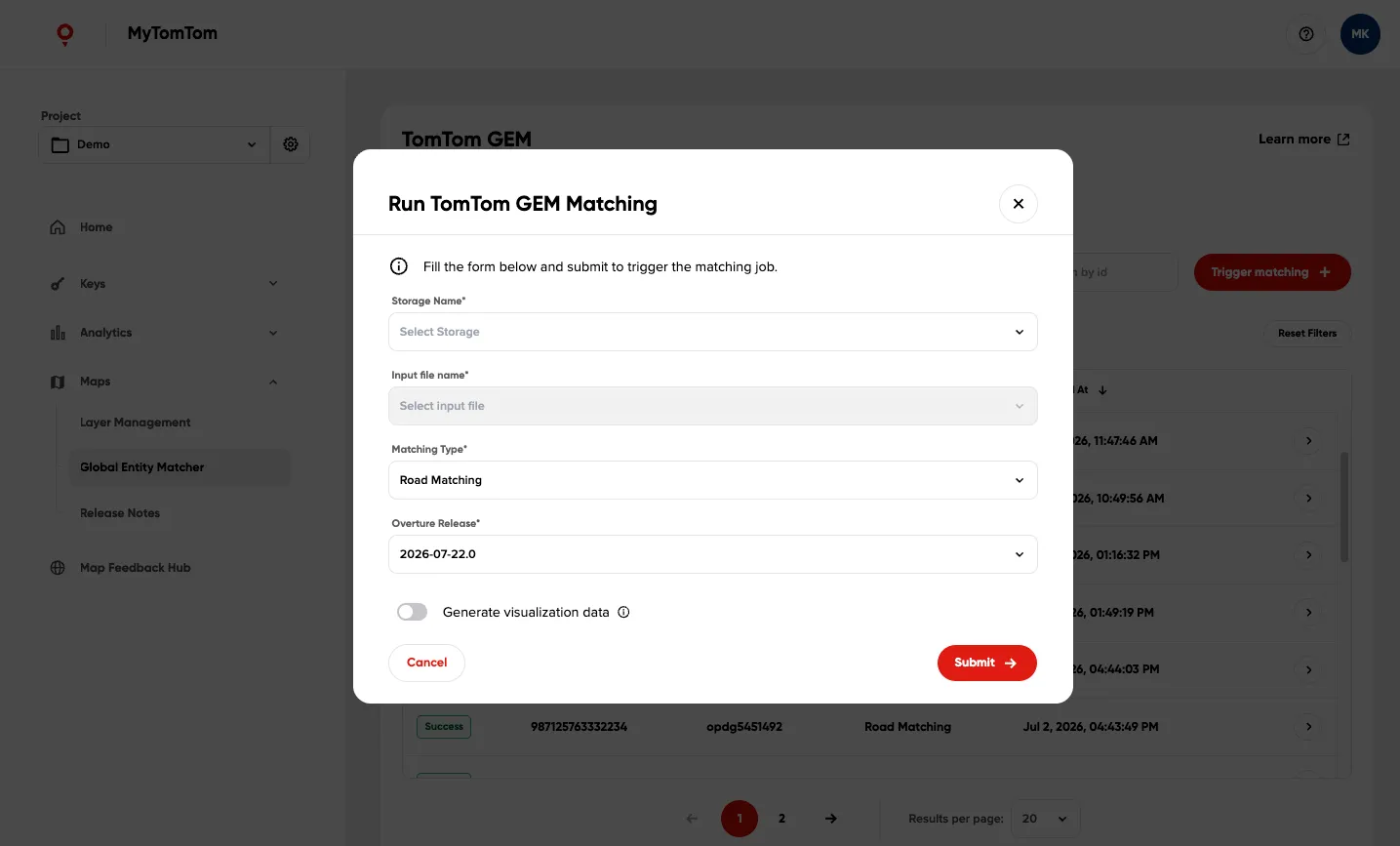
Input file dropdown behavior:
- Select a Storage Name first — the input file dropdown is disabled until a storage is chosen
- The dropdown lists only files compatible with the selected matching type:
- Road Matching:
.parquetfiles only - Lane Level Matching:
.parquetand.csvfiles
- Road Matching:
- Files are sorted newest first, with file size and last-modified date shown as tags on each option
- If no compatible files are found in the storage, the dropdown shows “No applicable files found in the storage” and remains disabled
- Changing the storage or switching to an incompatible matching type clears the current file selection
3.3 Submit the job
- Review all entries for accuracy
- Verify you selected the correct storage and file
- Click Submit
3.4 Job submission confirmation
Upon successful submission:
- The form closes automatically
- A new entry appears in the job list
- Initial status shows as Requested
- Job ID is generated for tracking

Step 4: Monitor job progress
4.1 Job status dashboard
The main dashboard displays all your matching jobs with real-time status updates.
Job Status Types:
| Status | Description |
|---|---|
Requested | Job was requested and is waiting to be processed |
In Progress | Job has started and is currently being executed |
Failed | Job encountered an error; open the details page for specific error messages |
Success | Job finished successfully |

4.2 Using dashboard features
Search by Job ID:
- Use the search bar to find specific jobs
- Enter partial or complete job ID
- Results filter in real-time
Filter Jobs:
- Filter by status (In Progress, Success, Failed)
- Filter by storage
- Filter by Overture release version
- Filter by matching type
Sort Options:
- Sort by submission date
- Sort by completion date
- Sort by job name
- Sort by status
4.3 Refresh status
- Refresh the page manually to see the latest status updates
- Click on a job row to view detailed information
Step 5: View job details
5.1 Access details page
- Locate your job in the dashboard list
- Click the details arrow (→) at the end of the job row
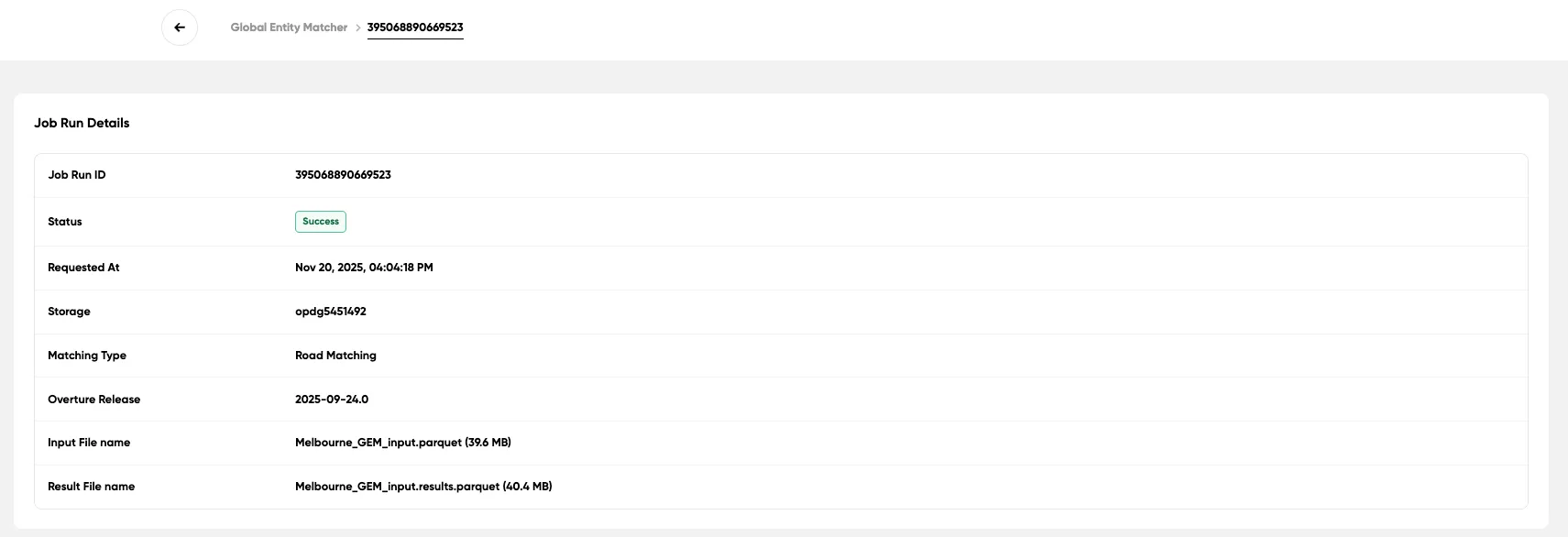
- The Job Run Details page opens
5.2 Details page overview
The details page contains two main sections:
Error alert (failed jobs only):
When a job has Failed status and the failure was caused by an input validation problem, a red error alert is displayed at the top of the details page — above the details table. It reads “Job run failed due to following reasons:” followed by the specific error message(s). Examples:
- Input file ‘input.parquet’ was not found in the storage location.
- Input file ‘input.parquet’ is not a valid Parquet file.
- Input file ‘input.parquet’ is missing required column(s): ‘geometry’. Required columns: ‘id’, ‘geometry’.
- Column ‘id’ in input file ‘input.parquet’ contains 1 duplicated value(s). Each road must have a unique ‘id’.
- Column ‘geometry’ in input file ‘input.parquet’ contains 3 value(s) that are not valid WKT LINESTRING geometries.
If the failure was caused by an internal system error, the message reads: An internal error occurred while processing your request. Please contact support.
Job Run Details Section:
- Job ID (unique identifier)
- Input filename used, with file size in parentheses (e.g.
my_map_data.parquet (12.3 MB)) - Result filename, with file size in parentheses once available
- Storage location
- Matching type applied
- Overture release version
- Submission timestamp
- Job status
- Statistics (available when job is successful)
5.3 Accessing Key Performance Indicators (KPIs)
For successful jobs, review the matching statistics:

Quality Indicators:
- >85% matched: Excellent quality
- 70-85% matched: Good quality, review unmatched roads
- Less than 70% matched: May indicate data quality issues
Step 6: Download results
6.1 Initiate download
For jobs with Success status, the Download Results section appears on the Job Details page only when the result file is confirmed to be present in the storage.
- On the Job Details page, locate the Download Results section
- Click the Download button
- The “Download Data” modal appears

6.2 Authorize storage
If you’re already authorized from the upload step, skip to 6.3. Otherwise:
- Follow the same authorization process as Step 2.3
- Unwrap credentials and execute
az logincommand - Proceed once authenticated
6.3 Specify download location
-
In the Local destination directory path field, enter where you want results saved
- Windows Example:
C:\Users\username\downloads\gem_results - macOS/Linux Example:
/Users/username/downloads/gem_results
- Windows Example:
-
The system updates the download command with:
- Storage account name
- Container name
- Results filename
- Your specified destination
-
Copy the complete
az storage blob downloadcommand
6.4 Execute download
Run the command in your terminal:
az storage blob download --account-name "<STORAGE_ACCOUNT_NAME>" \ --container-name "default" \ --name "<YOUR_FILE_NAME>.results.parquet" \ --file "/path/to/<YOUR_FILE_NAME>.results.parquet" \ --auth-mode loginDownload Process:
- Progress displays in terminal
- Download time depends on results file size
- Verify download completes successfully
- Click Finish to close the modal

6.5 Verify downloaded results
After download completes:
- Navigate to your specified destination directory
- Confirm the
<YOUR_FILE_NAME>.results.parquetfile exists - Check file size is reasonable (not 0 bytes)
- Open file in Parquet viewer or analytical tool
- Verify data structure and content in Output data schema
Resources
- Troubleshooting - Check solutions in case of issues
- Understanding GERS IDs - Learn about the reference system
- Use Cases - Explore practical applications
- Features & Benefits - Understand GEM capabilities
- Working with multiple jobs - Information about working with multiple matching jobs simultaneously
- Technical Details - Deep dive into system architecture
- FAQ - Find answers to common questions