
Hazards
Hazard visualization is a sub-feature of HorizonVisualization that renders upcoming road hazards as map markers during active navigation or free driving. Hazards include accidents, broken-down vehicles, and objects on the road, among others.
Project setup
Complete the Horizon visualization project setup to add the Navigation Visualization Compose dependency and create the TomTomNavigation, NavigationVisualization, and HorizonVisualization objects.
Hazard rendering is part of HorizonVisualization and is enabled by default. No additional configuration is required: when you initialize the TomTomSdk as shown in the Quickstart guide for Navigation, the SDK uses your API key to retrieve hazard data automatically.
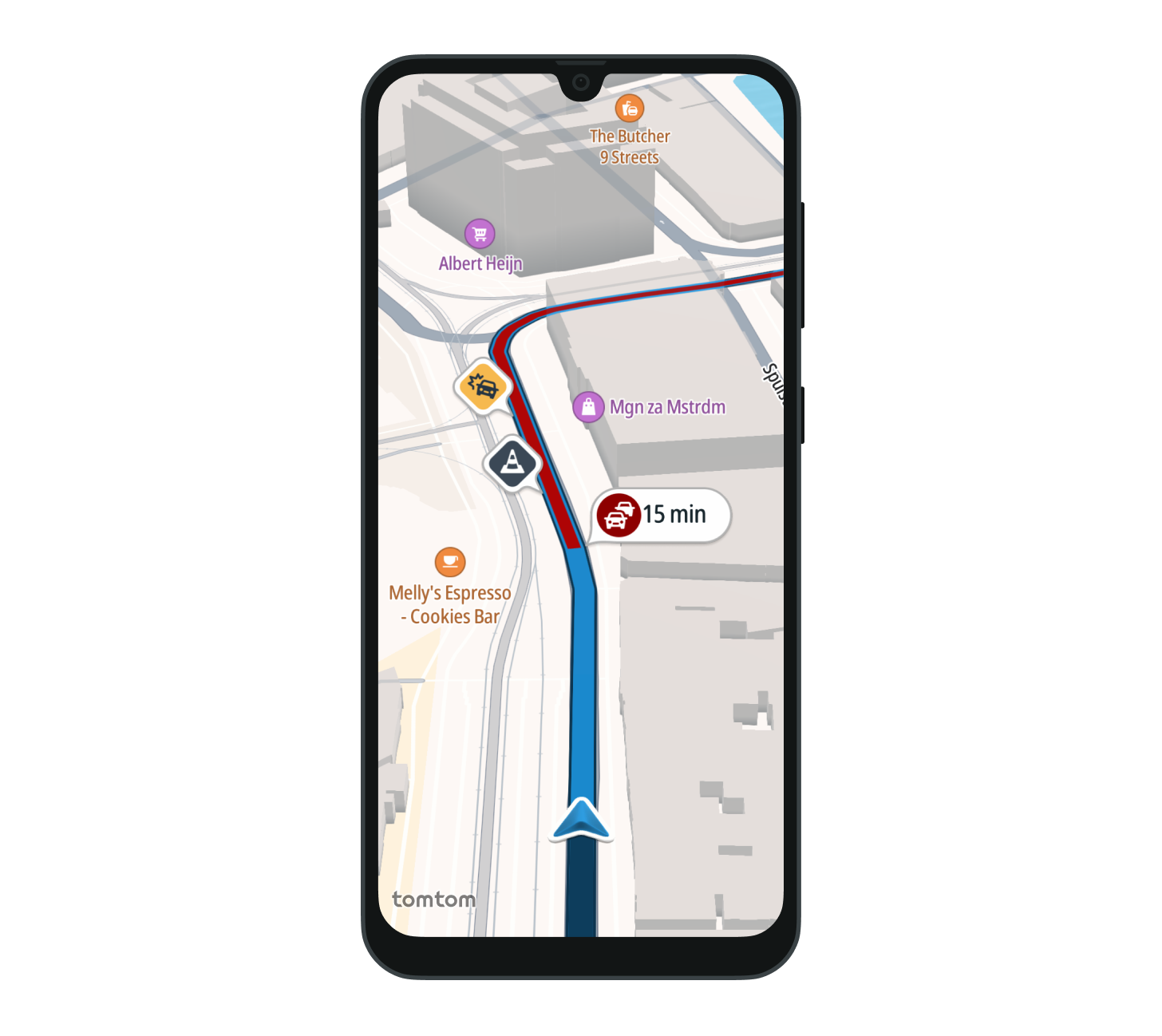
Enabling and disabling hazards
To enable and disable the hazard rendering at runtime, mutate the enabled property of the hazardVisualizationState through the HorizonVisualizationState. The HorizonVisualization composable reacts to the change and updates the map accordingly.
val horizonVisualizationState = rememberHorizonVisualizationState()
// Disable hazard rendering. Hazards are enabled by default.horizonVisualizationState.hazardVisualizationState.enabled = falseSupported hazard types
The Horizon delivers many hazard types, but the visualization renders only the most safety-critical ones. This set is fixed and is not configurable. The following types are rendered:
| Type | Description | Icon |
Road accident. |
| |
Disabled vehicle on the road. |
| |
Objects, debris, or animals on the road. |
| |
General road surface degradation, such as potholes. |
| |
Vehicle driving against the flow of traffic. |
|


Marker placement
Each hazard marker is placed at the first geometry point of the hazard element.
Hazard markers are always placed on the left side of the route tube, while traffic incidents are placed on the right side. This way, a hazard and a traffic jam at the same location can both be shown at the same time.

Next steps
Now that you can display hazards, here are the recommendations on what to explore next:
Safety locations
Display speed cameras, danger zones, and other safety locations along the route.