
Style update
Map Maker lets you update your custom map style to a newer version. Updating a style lets you use new customization features and improved visualization, and keeps the style compatible with newer versions of the TomTom Maps & Navigation SDK (Navigation SDK).
To see the available style updates, read the release notes for your map display renderer: Standard Map Display, Premium Map Display, or Map Display API.
This guide describes how to update a style that targets Navigation SDK. If your style doesn’t target Navigation SDK, see Update a style without an SDK target.
Style update flow
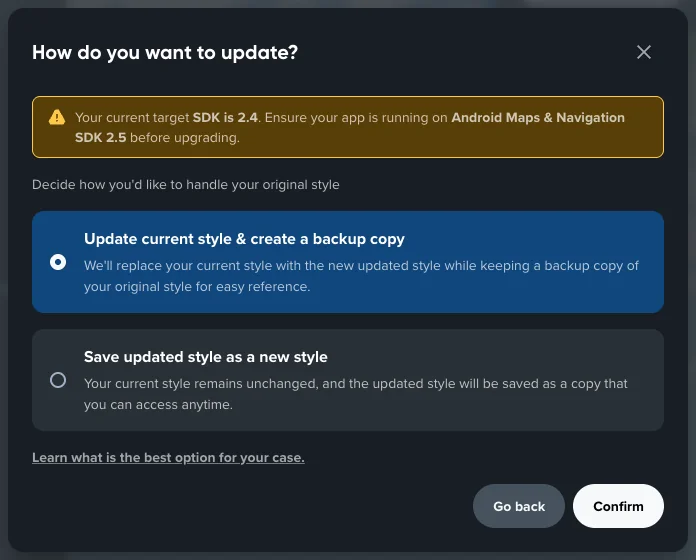
A typical style update follows these steps:
- Receive an update notification.
- Read the release notes.
- Click the update action in the notification.
- Choose an update strategy:
- Update current style & create a backup copy. Recommended for patch updates.
- Save updated style as a new style. Recommended for major and minor SDK version updates.
- Verify the changes in the updated style.
- Publish the updated style.
Style update notifications
Map Maker notifies you about a style update in the following cases:
- A new major or minor version of the Navigation SDK is available.
- A bug fix is available for a style that is compatible with your current SDK version.
Update a style for a newer SDK version
When you update the Navigation SDK version in your app, make sure that your style remains compatible. If you don’t know your current version, see How do I check which Navigation SDK version my app uses?. A minor SDK version update requires a style update.
For example, your app uses Navigation SDK 2.5, and version 2.6 is released. Soon after the release, you receive the notification Style for SDK 2.6 release is now available. You plan to move to Navigation SDK 2.6, so you click Upgrade to 2.6 now. Map Maker prompts you to choose between Update current style & create a backup copy and Save updated style as a new style.
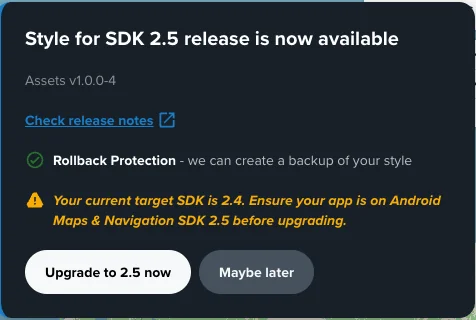
Your app uses a staged rollout, and the updated style isn’t guaranteed to be compatible with SDK 2.5. Therefore, you select Save updated style as a new style. This option keeps the existing style unchanged, creates an updated copy of it, and lets the new build, based on SDK 2.6, point to the draft URL of the copy.
After the update, complete the checks in Things to check after the update. When everything looks as expected, publish the style and switch the app from the draft URL to the production URL.
Update a style within the current SDK version
For example, you receive the notification New update available for your style. You click Check release notes to learn what has changed. To update, you click Update now. Map Maker prompts you to choose between Update current style & create a backup copy and Save updated style as a new style.
Because the update contains only bug fixes, you select Update current style & create a backup copy and publish the style right away.
Find available style updates in the Update center
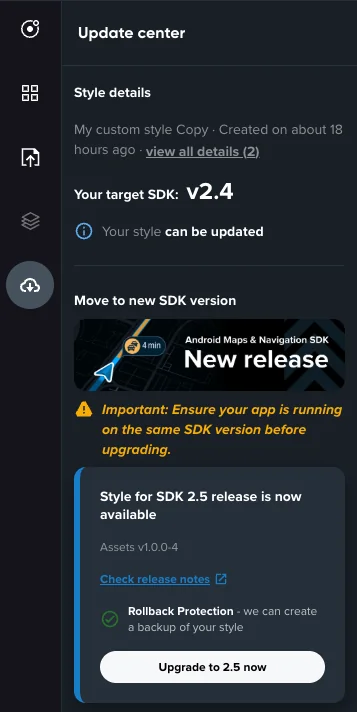
Map Maker shows update notifications in the editor. If you don’t see a notification, or you dismissed it, open the Update center. It’s the last icon in the left navigation bar.
The Update center lists the following updates:
- Style updates for all newer SDK versions, not only the latest one.
- Critical patch updates for your current style.
Things to check after the update
The style update keeps your changes to the foundation, modules, and icons, unless the release notes state otherwise. Read the release notes and verify how the style looks after the update.
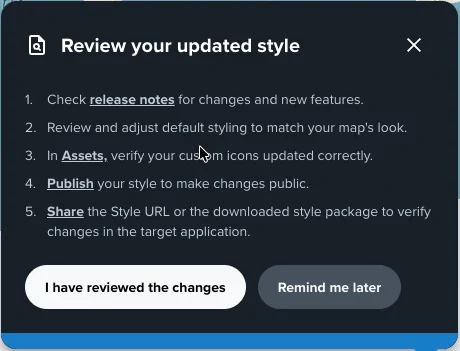
- Options in the Foundations and Modules tabs might be moved, or removed. Check the release notes for the list of changes, then review those tabs.
- If the release notes list new icons in a category that you customized, customize the new icons as well. For details, see Icon customization.
Update a style without an SDK target
If you turned off Target Maps & Navigation SDK - Android when you created the style, the style doesn’t target Navigation SDK. For details, see Choose the SDK target and map display renderer.
The update follows the same Style update flow, with the following differences:
- Updates aren’t tied to Navigation SDK versions. You receive only the notification New update available for your style, and you click Update now to update.
- The Update center lists only the latest available update.
Both update strategies are available. Because the update changes only the draft version of your style, verify the style in your app with the draft URL before you publish it. Then complete the checks in Things to check after the update.
FAQ
Which Navigation SDK version does my style target?
Map Maker shows the target Navigation SDK version in the following places:
- In the editor, next to the style name. For example, Maps & Nav SDK 2.4.
- In the Update center, under Your target SDK.
If the Update center is available but doesn’t show a target SDK, your style doesn’t target Navigation SDK. For details, see Update a style without an SDK target.
If the editor doesn’t show the version label and the Update center isn’t available, the style can’t be updated.
How do I check which Navigation SDK version my app uses?
In your Android project, open the build.gradle.kts file of the app module and find the com.tomtom.sdk dependencies. The version of these artifacts is the Navigation SDK version:
dependencies { implementation("com.tomtom.sdk.maps:map-display-premium:2.6.0")}If the version is a variable, such as ${property("navSdkVersion")} or a version catalog reference like libs.tomtom.sdk, look up its value in gradle.properties or in the version catalog in the gradle/ directory.
If your app is based on Automotive Navigation App, open gradle/gosdk-libs.versions.toml and find the gosdk version. All com.tomtom.sdk dependencies use this version:
[versions]gosdk = "2.6.0"Limitations
Layers tab, including layer reorder are removed during a style update. After the update, you must apply those changes again. For this reason, use Modules instead of layer overrides.