
Modules
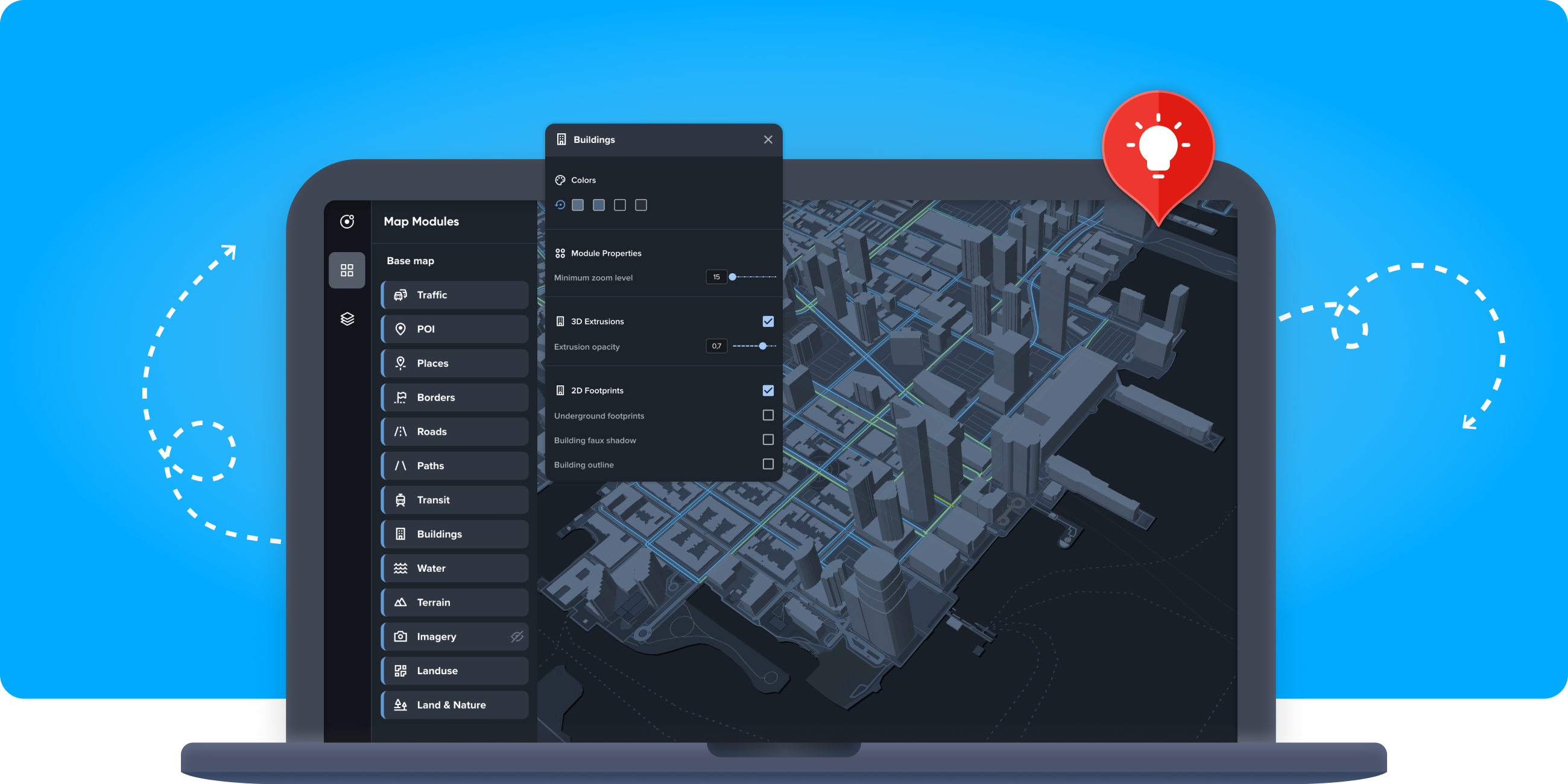
Modules represent a functional part of the map structure and are composed of groups of layers. The parameters for each module affect the map layers and sources used by the style. Use modules to customize related map features without editing layers one by one.
Module types
Map Maker has two types of modules: base map modules and SDK modules.
| Module type | Data source | Use |
|---|---|---|
| Base map modules | TomTom vector tile server | Style core map features, such as roads, buildings, water, and POIs. |
| SDK modules | The application SDK at runtime | Style overlays for the current user task, such as a planned route or active-route traffic. |
Base map modules render map data for the whole visible area as users pan and zoom.
SDK modules render only data that the application provides at runtime. For example, they can render the current route, traffic on that route, upcoming hazards, search results, or the EV range for the current battery level. Map Maker provides sample data to make styling complex scenarios easier. See Scenes for more information.
Why use SDK modules
Use SDK modules to style the navigation, search, and range experience without changing application code.
For example, you can customize:
- Route lines, waypoints, traffic, hazards, and other navigation overlays.
- Colors, icons, sizes, and density of SDK-driven features.
The SDK still controls feature behavior. A style can change how a feature looks, but it does not change when the feature appears, how routes are calculated, or how search and range data are generated.
To customize icons used by SDK modules, see Icon customization.
Modifying module parameters
The Modules tab provides an easy-to-use interface for customizing the map style.
- To see all modules, click
 in the left-hand side panel.
 - To see the parameters, click one of the modules.
Modify a parameter to see the change on the map.
To revert a change, use the undo and redo buttons at the top of the editor.
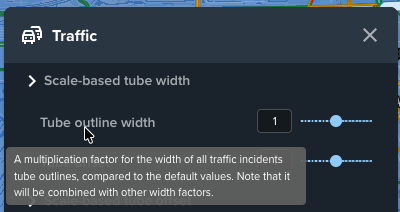
Hovering over a module property shows a tooltip with the property description, which helps you understand what the property changes.
Hide or show a module
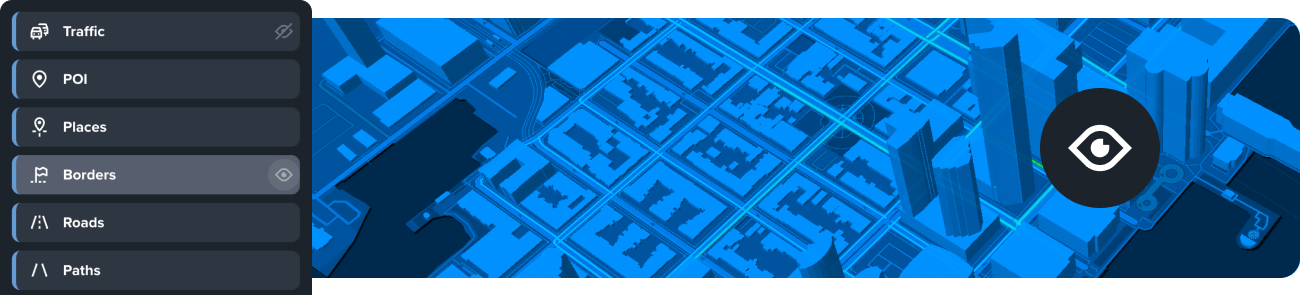
The visibility of a module defines whether its layers are displayed on the map. Note that when you hide a module, the groups of layers that make up the module are not removed from the style. Only the visibility of each individual layer is changed.
Follow these steps to change the visibility of a module:
- Click in the left-hand side panel.
- Hover over the module you want to hide.

Hide Module
appears. - Click the Hide Module icon to hide the module.
When the module is hidden, the
 Show Module icon is shown.
 - To show the module again, click the Show Module icon.
Restoring a parameter value
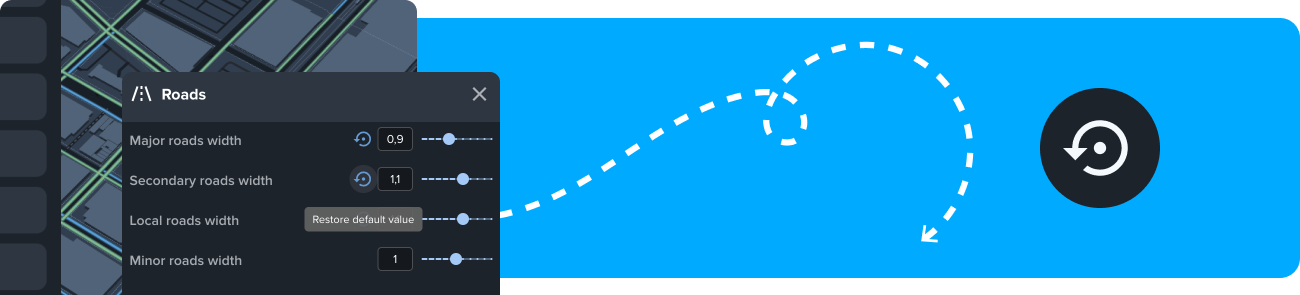
To restore a module parameter to its default value, click the restore button  next to it.
Scenes
Use scenes to preview SDK module changes in Map Maker.
SDK module data normally comes from the application at runtime. In Map Maker, scenes load sample data so that you can style SDK-driven features before testing them in an application.
A scene represents a feature area, such as a route view. Each scene contains scenarios — sample situations, like a short route, a long EV route, or a route with hazards and traffic.
Scenario settings control which sample features are visible in the preview; alternative routes, traffic incidents, waypoints, or hazards, allowing you to simulate different situations that would be otherwise difficult to test during navigation in an actual application.
How modules are connected to foundations
Some of the module parameter values derive from foundation parameters or other module parameters. This means that changing a foundation or module parameter affects dependent module parameters.
This only happens if you have not changed the module parameter. Once you change the parameter, changes to foundations or other modules won’t override its value.