
How to get a TomTom API key
Introduction
API stands for Application Programming Interface. When you use our location services (our APIs), we need a way to identify that it’s your application making the request.
Thanks to the API key, we can:
- Prevent abuse
- Provide you with useful analytics
How to get an API key
-
To get your API key, you first need a TomTom account. If you don’t have one yet, register before continuing.
-
If you use a company account (a contracted, or enterprise, account), you might need access to a project first. Every API key belongs to a project, so you can’t see or create keys until you have access to one. If MyTomTom asks you to request access to a project, or you can’t see API & SDK Keys in step 3, request access first. To learn how project access works and who approves it, see Managing access in MyTomTom.
Which project should I choose? Choose the project that includes the product you want to use, for example Routing API. A project represents an agreement or the products you have access to, and most organizations only have a few. See Projects in MyTomTom. If you’re not sure which one fits, ask your organization’s MyTomTom administrator.
Freemium and Pay As You Grow accounts already have a project, so you can skip this step.
-
Go to API & SDK Keys and select the key you want to use. We’ve already created one for you, called My first API key.
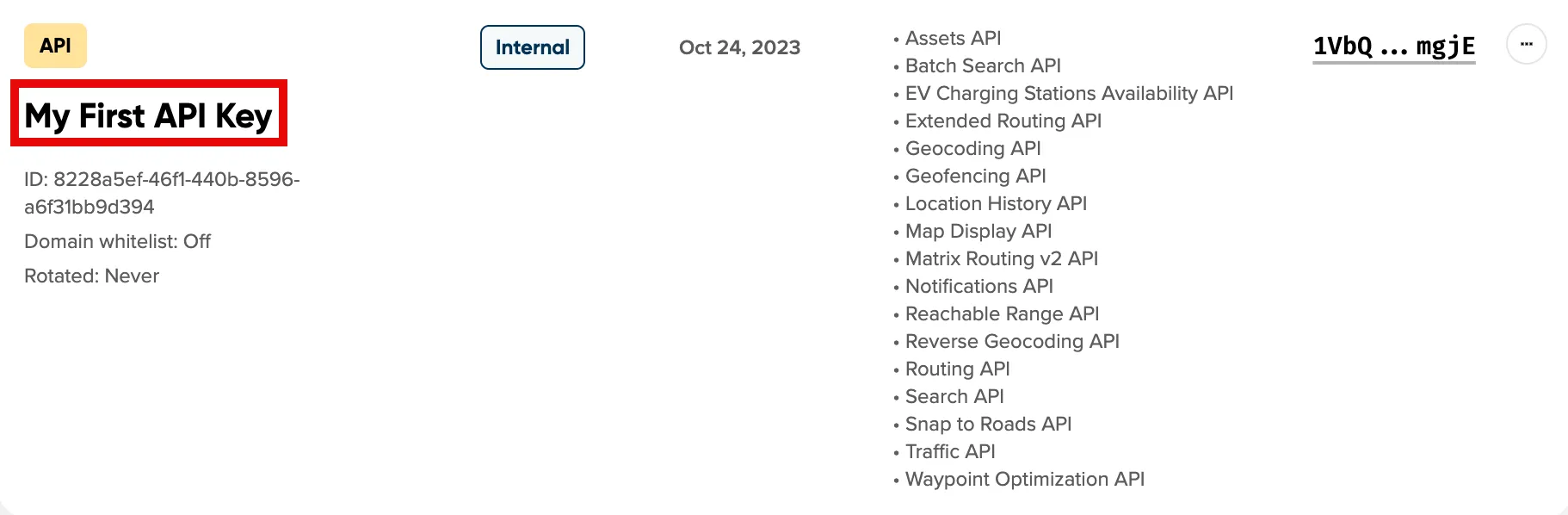
- Copy the key and proceed with the steps in the following section.
How to use TomTom API keys
Want to see a result right away? Follow these steps:
-
Copy the URL below.
https://api.tomtom.com/maps/orbis/display/raster/tile/0/0/0?apiVersion=2&style=street-light&key=YOUR_API_KEY
-
Replace
YOUR_API_KEYwith your own key from API & SDK Keys. -
Paste the full URL into your browser’s address bar and press Enter. You should now see a map tile of the whole world.
Example
Now let’s look at a more general example. Throughout the TomTom API documentation, you’ll find request URLs formatted like this:
https://{baseURL}/{service}/{versionNumber}/...?key=YOUR_API_KEYTo make your own request:
-
Replace
YOUR_API_KEYwith your own key. -
Replace
{baseURL}withapi.tomtom.com. -
Fill in the remaining parameters according to the service documentation. You can find all the details in the Required parameters table on each endpoint’s documentation page.
You’re now ready to make your next request with TomTom APIs.