
QPS management
Introduction
Modify the query per second (QPS) limit for an API key on the API & SDK Keys page in MyTomTom.
Why is QPS management important?
The goal of the QPS management feature is to provide customers with a self-service option to change their QPS limit.
QPS management allows customers to optimize their API usage by increasing or decreasing their QPS limit based on their current usage. If the QPS limit is too low, it can lead to blocked calls and impact customer experience.
How does QPS limit impact your business? If your limit is too low your calls will be blocked, and your customers will be impacted. It’s possible to both increase and decrease your QPS limits.
Definitions
QPS:
QPS stands for queries per second. It is a measure of the number of queries that can be processed
by an API in one second.
QPS limits:
The QPS limit refers to the maximum number of queries per second that can be made. This can
be changed on the API key page.
QPS breaches:
QPS breaches occur when the number of queries per second exceeds the limit set for an API
key and the products (APIs) it is using. QPS limits can be changed.
Determine if your QPS is optimal for your current usage
To determine if your QPS is optimal for your current usage, you can monitor the number of QPS limit breaches on the Analytics dashboard in MyTomTom. Follow these steps.
A simple example for one key:
Set filter > Date: last month > Zoom level > Key: First key > Product: Map Display API > Split products on > QPS breaches tab.
Visit the usage dashboard documentation for more information. See the Analytics page.
Check your current QPS limits for a key
To view the QPS limits assigned to a key:
-
In MyTomTom, go to Keys > API & SDK Keys.
-
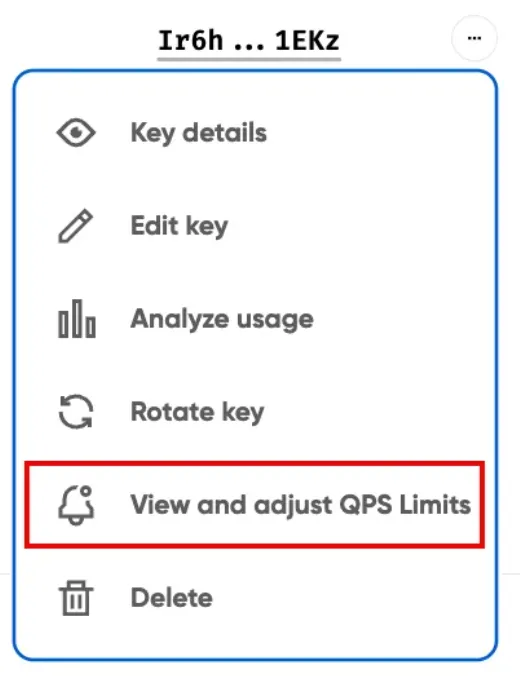
Find the key, click the … (more options) button on its row and select View and adjust QPS Limits.
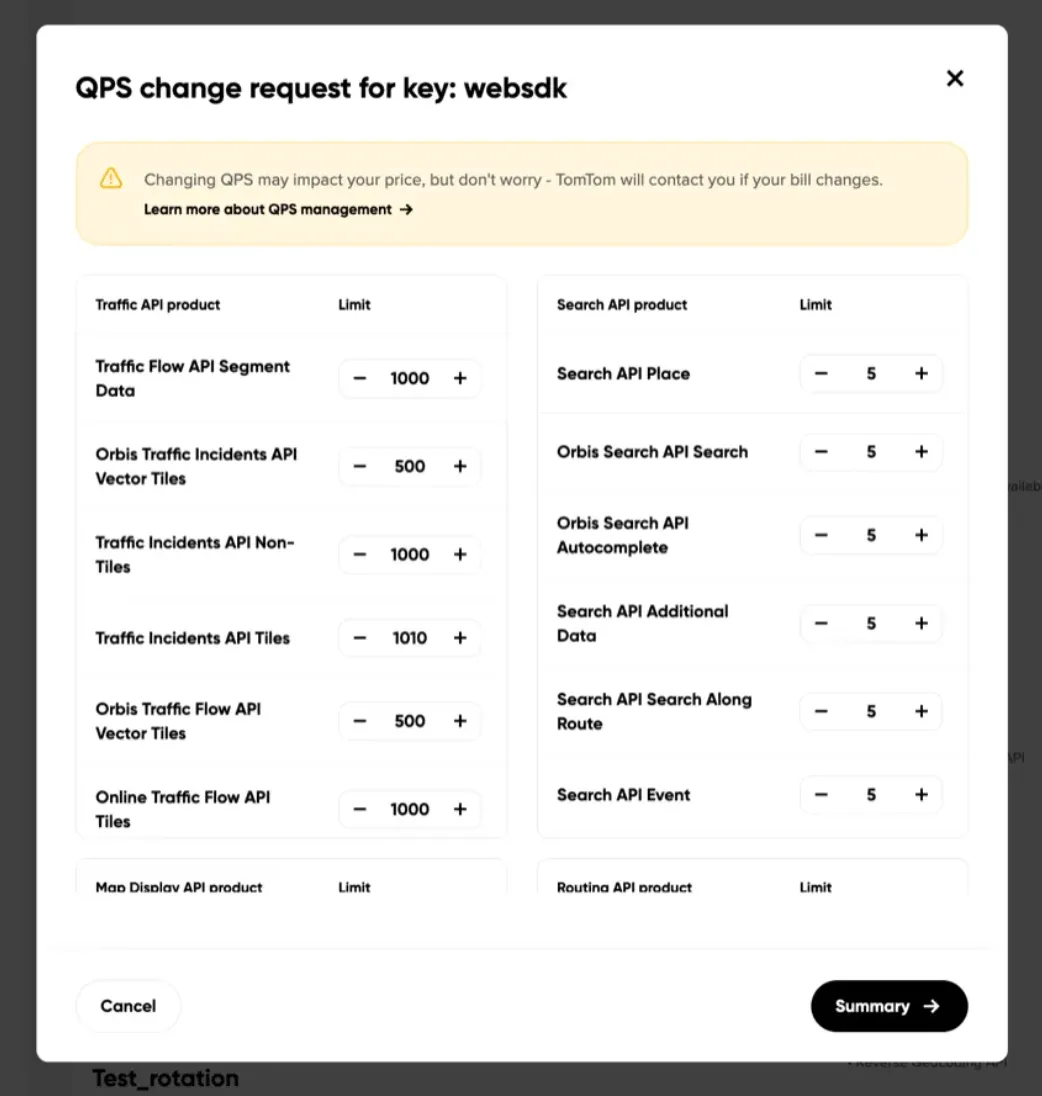
The QPS change request for key window opens. It lists the current QPS limit for every product assigned to the key, grouped by API (for example, Traffic API, Search API, Map Display API and Routing API).
Request a change for the QPS limit for a key
To request a change in the QPS limit for a key:
-
Open the QPS change request for key window as described above.
-
Use the plus (+) or minus (-) buttons next to each product to increase or decrease its QPS limit, then click Summary.
-
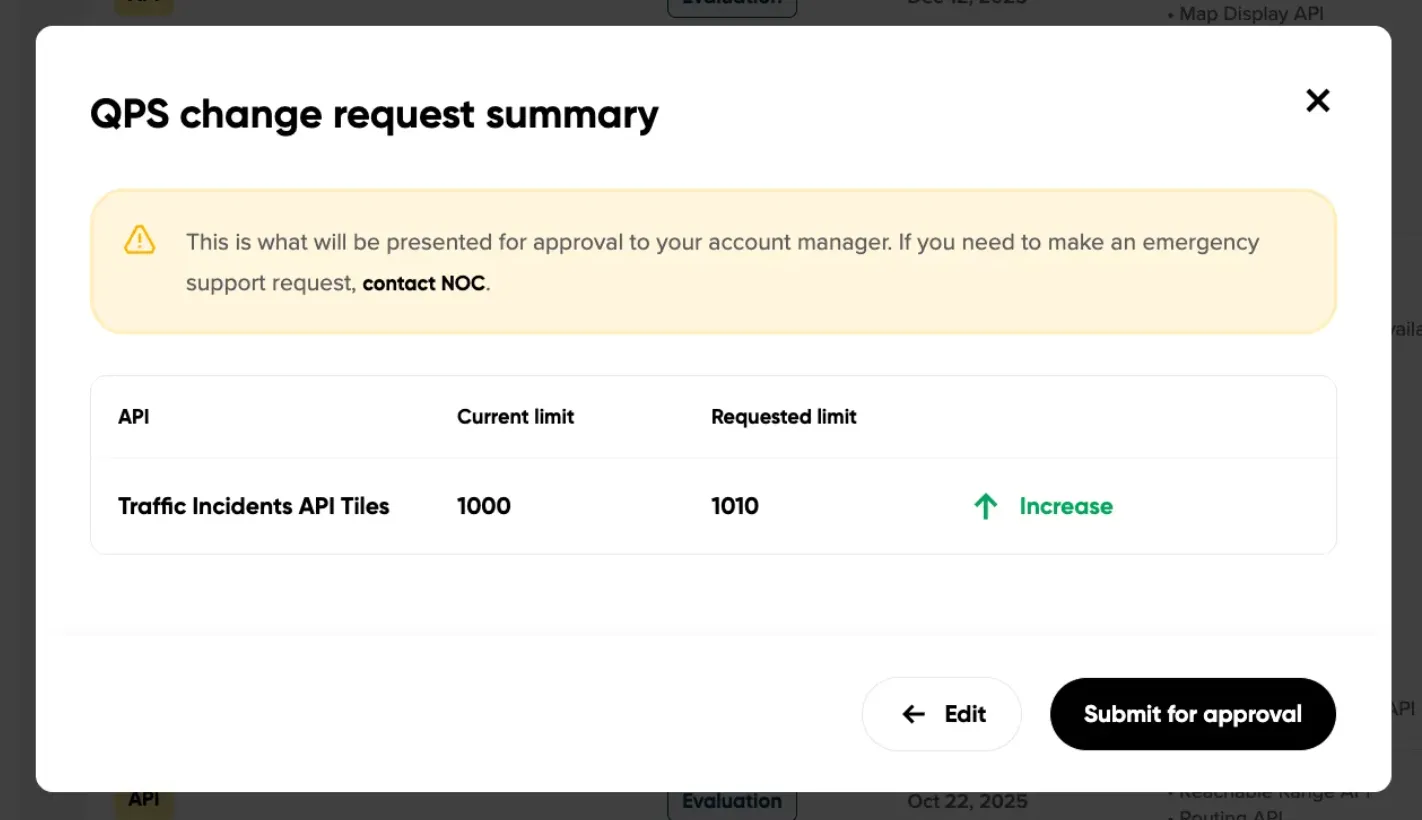
In the QPS change request summary window, check the current limit, the requested limit and whether it is an increase or a decrease. This is what is presented for approval to your account manager. To make changes, click Edit. To send the request for approval, click Submit for approval.
-
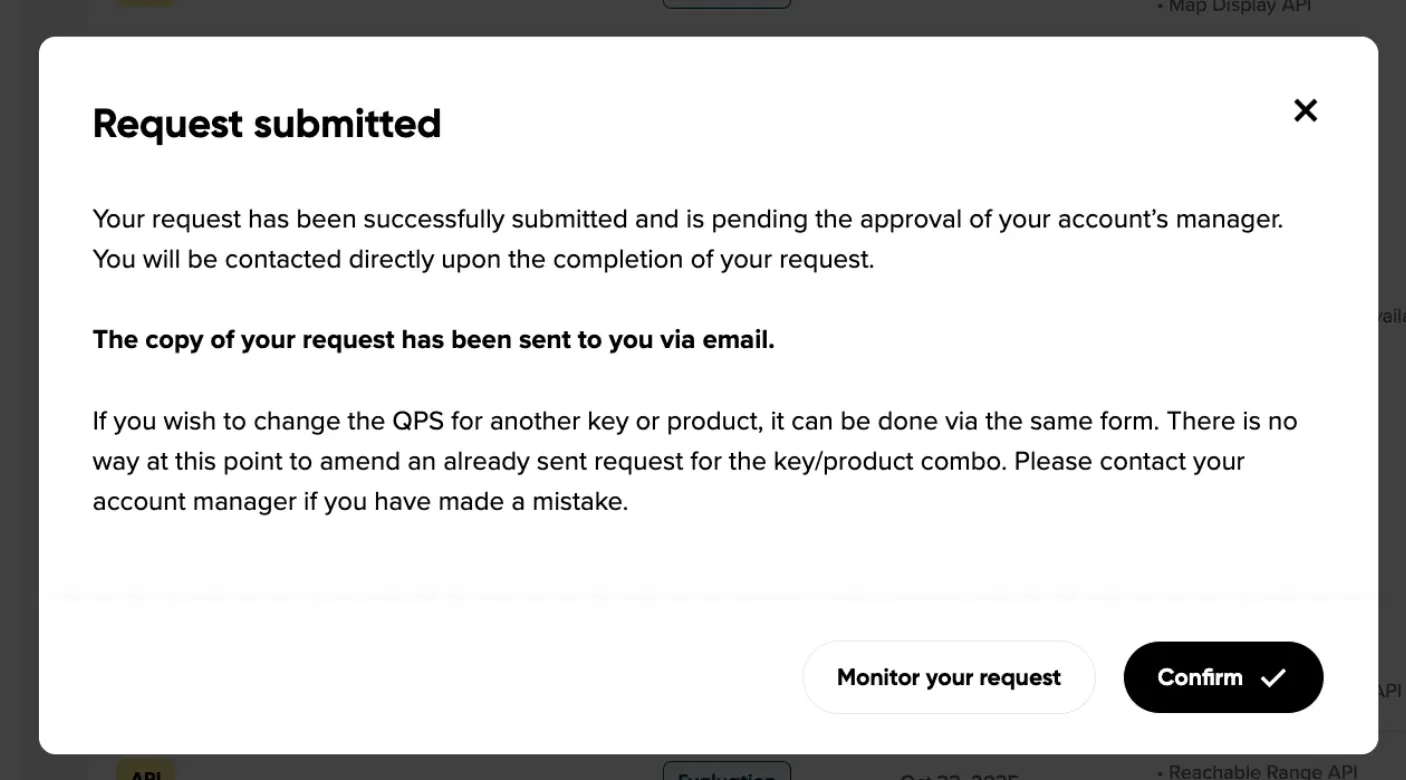
The Request submitted window confirms that your request was submitted, and a copy of the request is sent to you by email. Click Confirm.
-
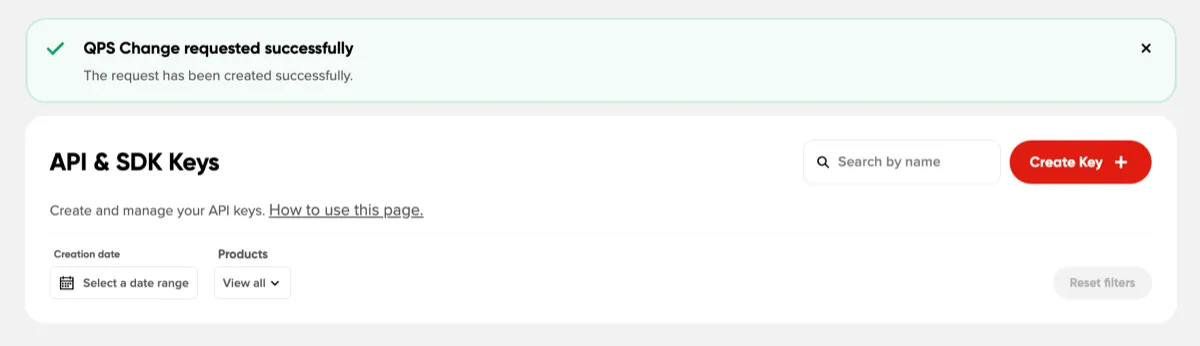
The QPS Change requested successfully message is shown on the API & SDK Keys page.
Keep in mind:
- Your request is reviewed by your account manager. This is a manual process, so delays should be expected.
- There can be only one active request for a QPS change for the key-product pair.
- You can’t amend a request after it is submitted. If you made a mistake, contact your account manager.
- To change the QPS limit for another key or product, submit a new request in the same way.
- For an emergency support request, contact the TomTom Network Operations Center (NOC).
Changing the QPS limit may impact your price. TomTom will contact you if your bill changes. We will notify you once the request is finalized and the QPS limit has been changed.
Monitor your request
To monitor the status and history of your QPS change requests, go to Keys > QPS Change requests in MyTomTom. You can also click Monitor your request in the Request submitted window.