
Size modes

Introduction
Size modes are part of the Adaptiveness Framework and define how the scale and spacing of UI elements are applied across different automotive screen sizes in the TomTom Automotive Navigation Application.
They provide predefined configurations for text, icons, components, and spacing. The system selects the most appropriate size mode based on the available screen space and activity type, ensuring minimum readable sizes and safe interaction affordances are always maintained.
Size mode attributes
This section describes the system-level sizing and spacing configurations that size modes are built from.
Sizing
Three sizing configurations are defined at the system level:
- Large. Intended for large automotive displays (11.8″ and above).
- Medium. Intended for smaller automotive displays and more constrained in-vehicle contexts. This configuration is used across most Mini apps and secondary displays such as Cluster and HUD.
- Small. Intended for mobile contexts, where screen characteristics and interaction patterns differ from in-vehicle displays.
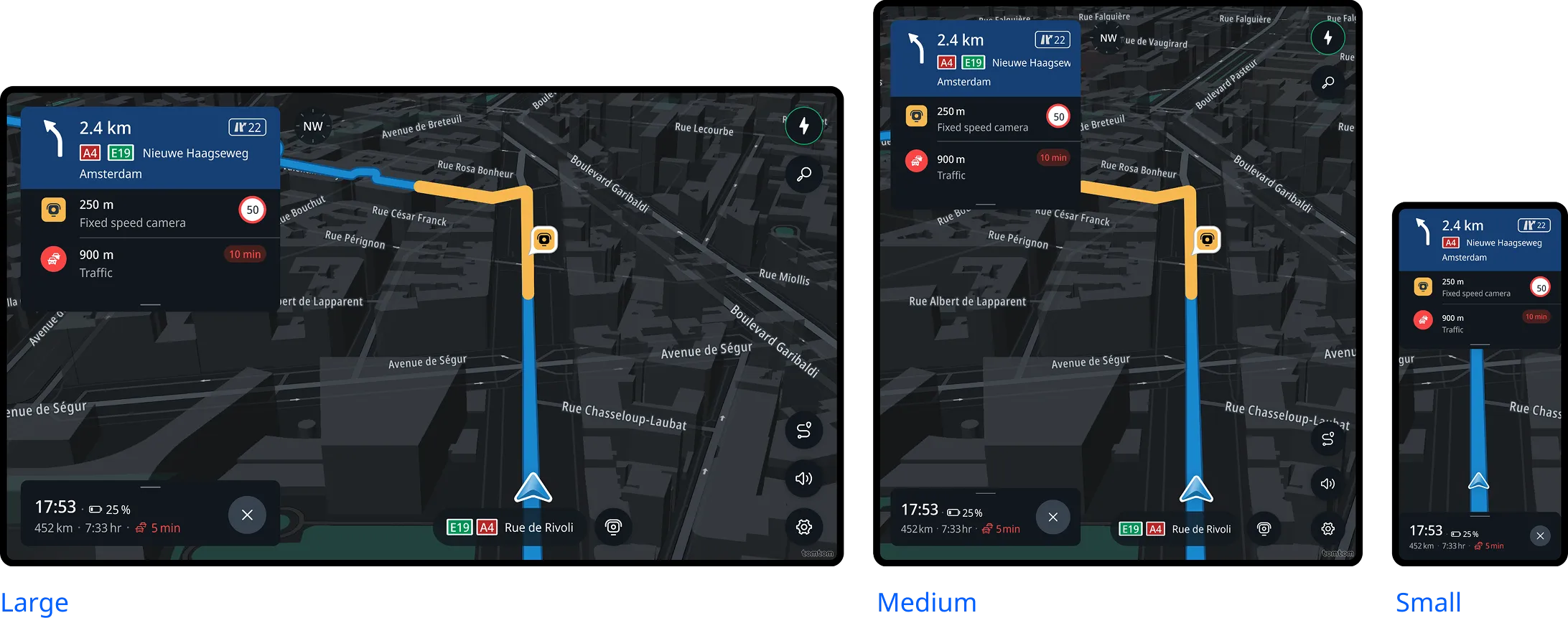
Each sizing configuration defines values of sizing-related attributes, including:
- scale (component dimensions)
- type scale (font sizes)
- icon sizing
- graphic sizing
- corner radius
- weight (line and stroke thickness)
Spacing
Spacing configurations are defined separately for the vertical and horizontal directions to adjust layout density across different screen proportions and orientations.
Height:
- Tall. Intended for screens with more available vertical space.
- Short. Intended for vertically constrained screens.
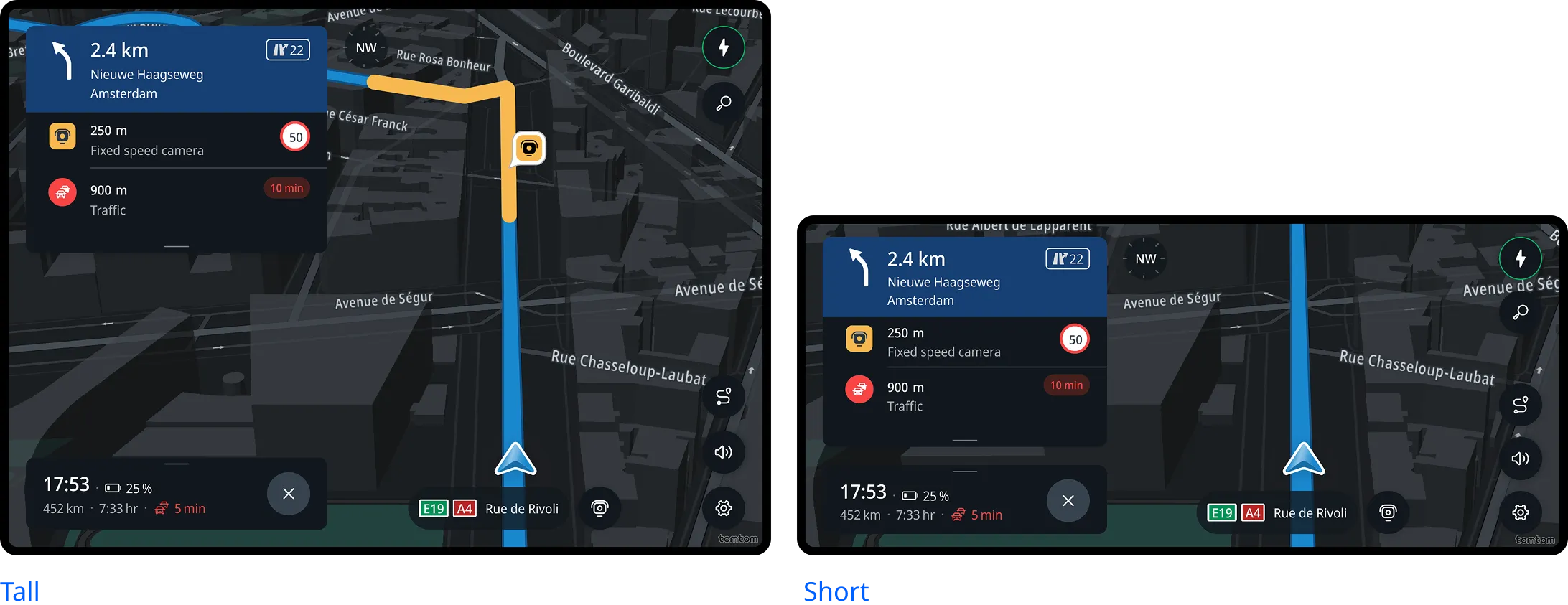
Width:
- Wide. Intended for screens with more available horizontal space.
- Narrow. Intended for horizontally constrained screens.
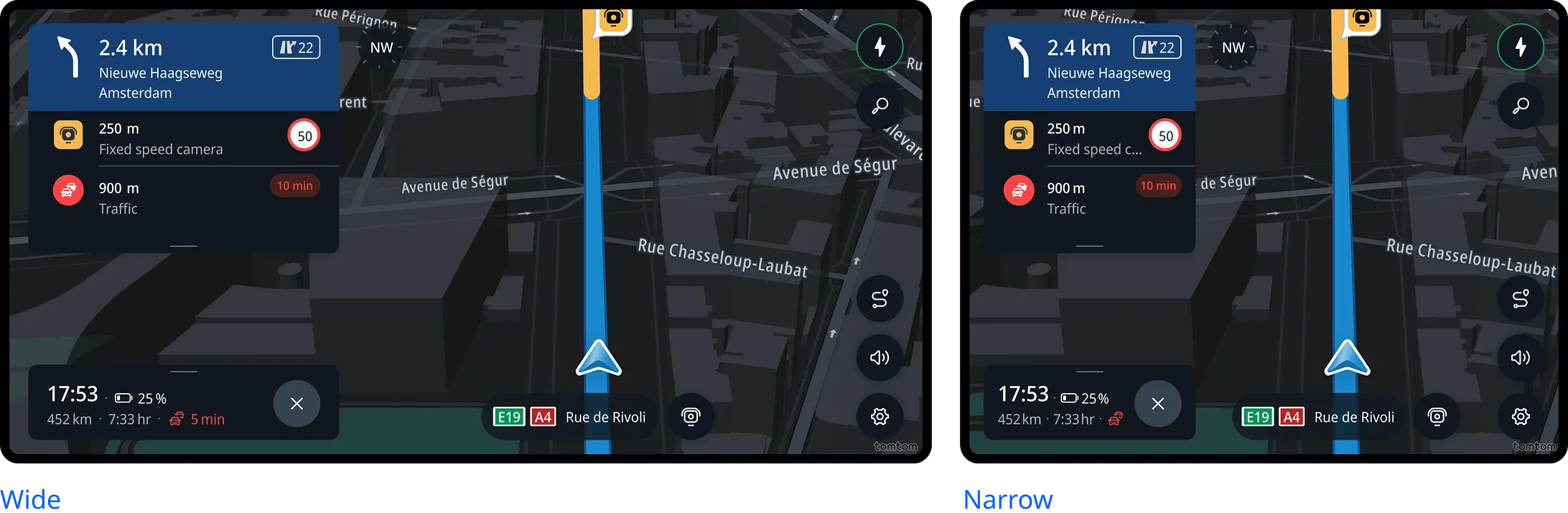
Each spacing configuration defines values for spacing-related attributes, including:
- spacing between elements
- padding within components and containers
Available size modes
A size mode is a predefined combination of:
- one size configuration
- one vertical spacing configuration
- one horizontal spacing configuration
The naming follows a clear and descriptive structure: [Size config][Vertical spacing config][Horizontal spacing config] Example: MediumShortWide
This approach allows size modes to accommodate a wide range of automotive screens through predefined sizing and spacing configurations. The following size modes are currently defined: LargeTallWide
- MediumTallWide
- MediumTallNarrow
- MediumShortWide
- MediumShortNarrow
- SmallShortNarrow
CSD activities (Full, Mini, Micro)
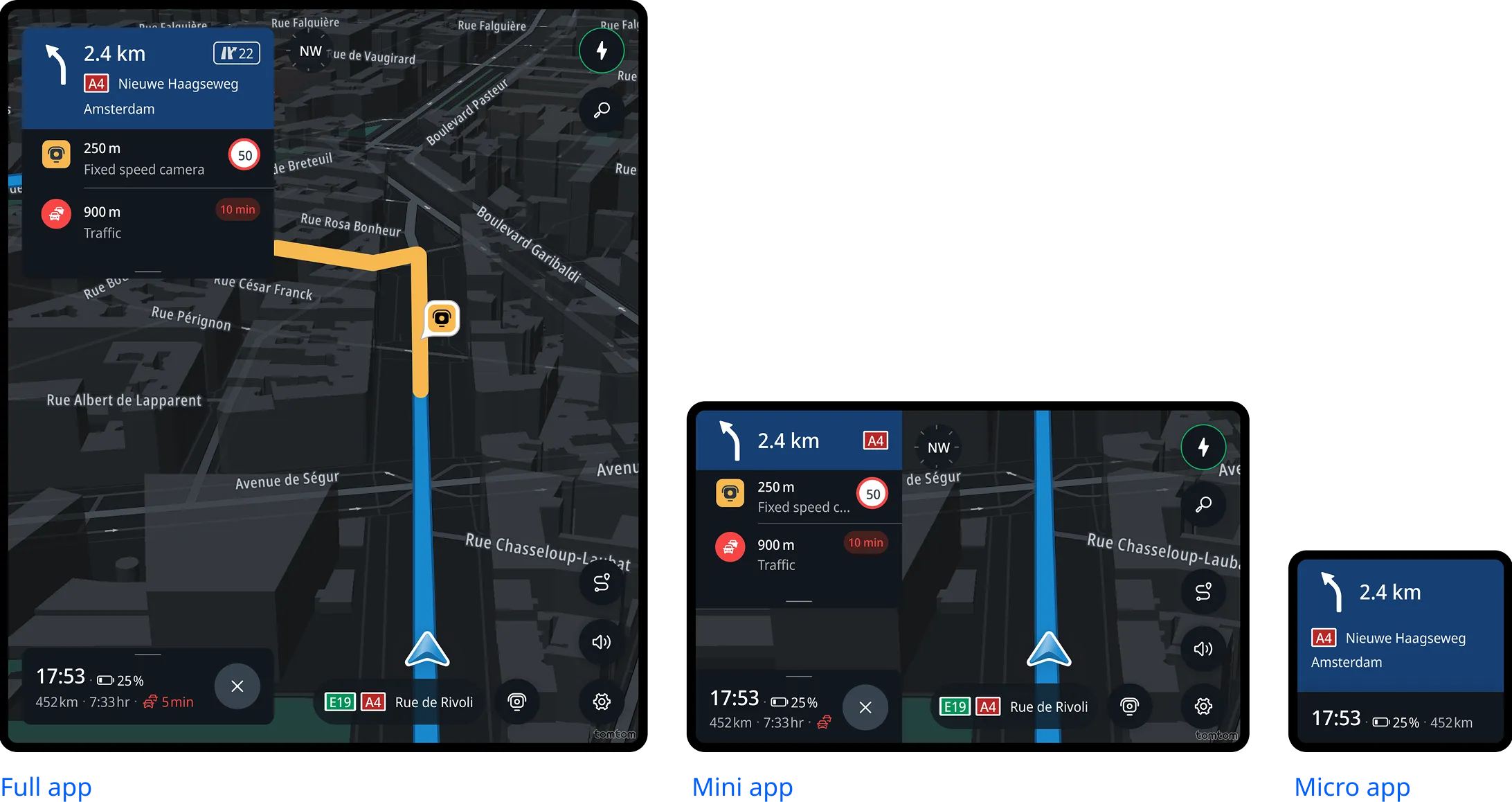
For the Central Stack Display, screen buckets are used to guide which size mode is applied. This applies to Full App, Mini App, and Micro App activities. Screen buckets represent ranges of screen width and height, defined in dp based on a 160 dpi baseline. Bucket boundaries act as transition points where the system switches between size modes to best accommodate the available screen space. Size modes are selected per activity, meaning that multiple size modes may be used on the same display. For example, a Full App and a Mini App shown on the same screen can apply different size modes depending on the space available to each activity.
| Screen Width→ Height↓ (at 160 dpi) | < 1350 d | 1350 - 1714 dp | 1715dp |
|---|---|---|---|
| < 800 dp | MediumShortNarrow | MediumShortWide | MediumShortWide |
| ≥ 800dp | MediumTallNarrow | MediumTallWide | LargeTallWide |
Note: Mini and Micro App activities typically operate within more constrained areas of the screen and therefore most often apply MediumShortNarrow or MediumTallNarrow size modes. Full App activities can vary more significantly in size and may use a wider range of size modes.
Secondary displays (Cluster, HUD)
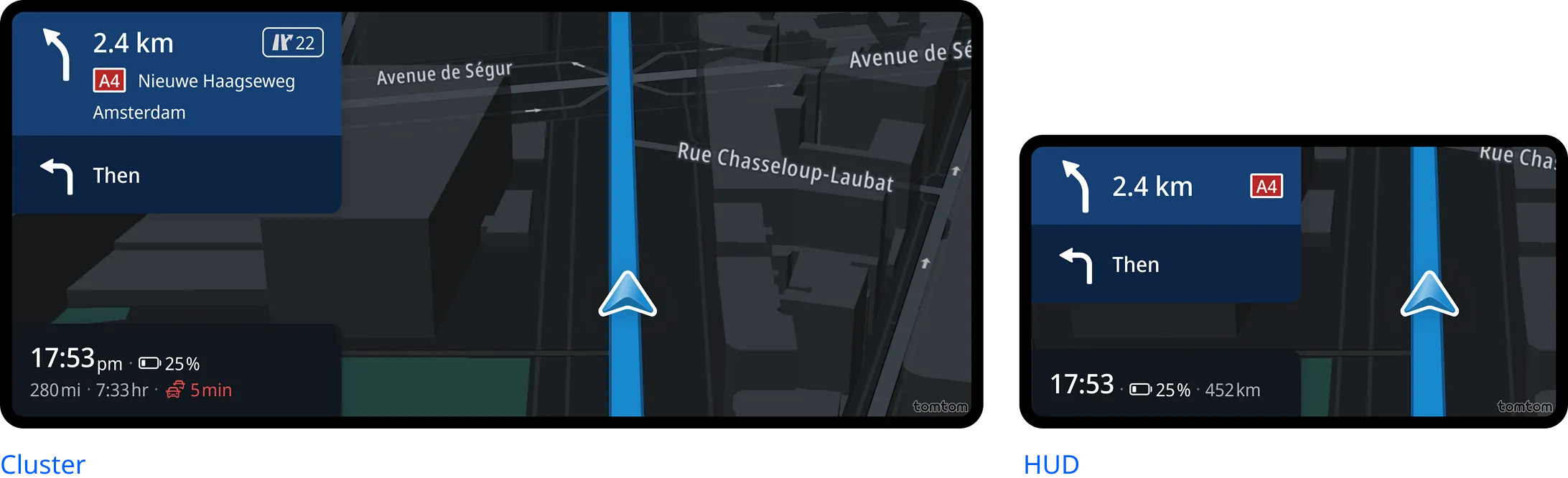
Secondary displays such as Cluster and HUD operate within more constrained and consistent screen environments. Screen sizes in these contexts vary less compared to the Central Stack Display. For this reason, size mode selection for Cluster and HUD does not rely on screen buckets. Instead, a single size mode is used: MediumShortNarrow.
Customization
Size modes provide a predefined baseline for UI sizing and spacing, ensuring a consistent and safe starting point out of the box. Customization is supported by adjusting the values of existing sizing and spacing tokens, allowing the UI to be aligned with OEM branding and visual preferences while preserving the underlying structure of the system. Customization can be applied at different levels, including: - system-level sizing and spacing scales - component-level sizing and spacing tokens for individual components The structure of size modes and the set of available tokens are defined by the system and are not customizable.