
Colors

Introduction
Color tokens are vital in our design system to ensure consistency, accessibility, and flexibility, enhancing the overall visual structure and brand identity.
Global tokens
Global colors represent the base palette that defines the TomTom brand identity.
These foundational tones serve as the building blocks for both product aesthetics and system-level semantics.
These colors are neutral, versatile, and brand-aligned. TomTom’s base colors include palettes such as:
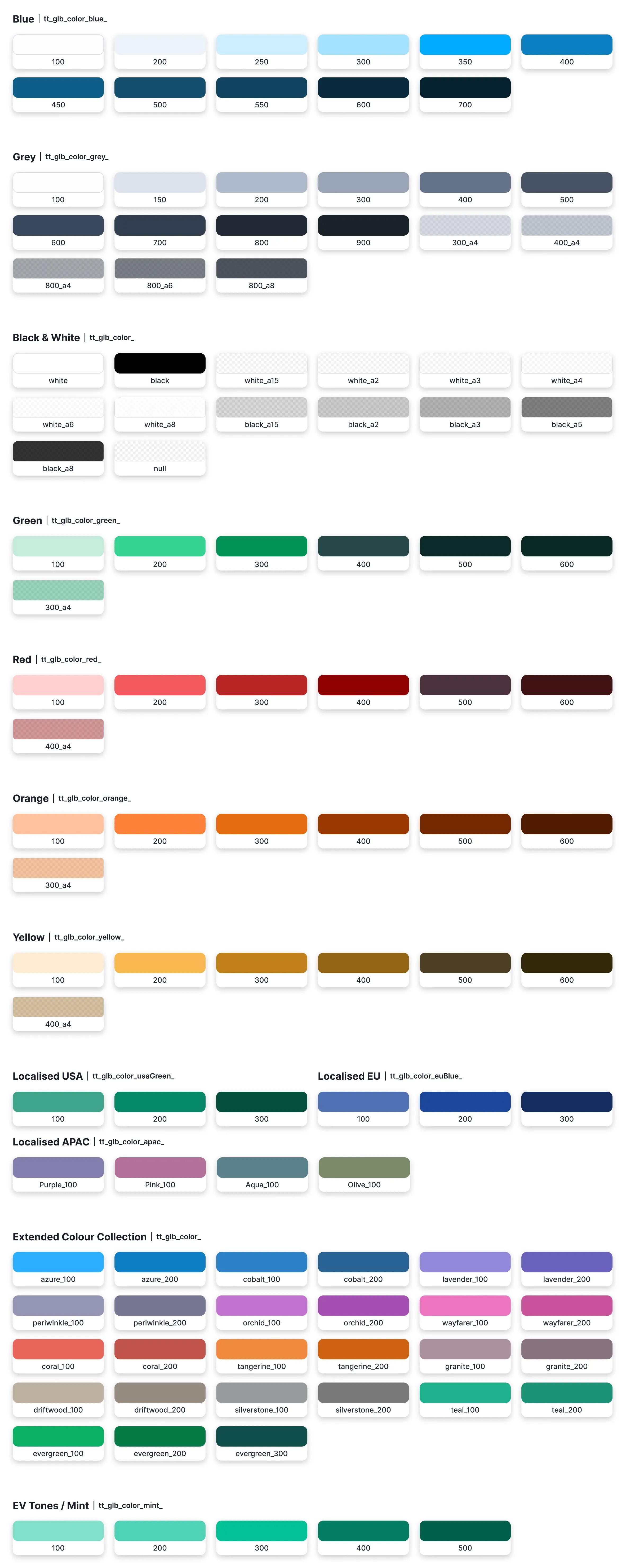
- Blue – Our primary brand color, used to signal primary actions and key features.
- Grey – A neutral palette for UI surfaces, text, and structural layout.
- Black & white – Pure values for high-contrast scenarios.
- Red, green, yellow, orange – Functional accents used for alerts, confirmations, and warnings.
- Localized colors – Region-specific tones, especially for road signage (e.g. EU Blue and USA Green) to reflect local conventions, as well as APAC-specific tones (e.g. Purple, Pink, Aqua, and Olive) used to distinguish multiple route options in a routing list.
- Transparent (alpha) variants – Several color families include alpha variants, spanning Black & White, Grey, Green, Red, Orange and Yellow.
- Extended color sets – To distinguish search categories.
- EV Tones – Reserved for electric vehicle (EV) related features.
System tokens
The System color tokens are semantic design tokens that adapt automatically across light and dark themes. Instead of using fixed color values, these tokens ensure your UI remains consistent, accessible, and maintainable as the design system evolves. The color categories tell more about the purpose of the color that belongs to the group.
Across the color catagories we also differentiate between hierarchy Levels:
- Primary: Main content, highest emphasis
- Secondary: Supporting content, medium emphasis
- Tertiary: Subdued or disabled content, lowest emphasis
Color categories
a. Surfaces
Surface tokens define the foundational layers that UI is built upon. Each surface includes dedicated foreground tokens to ensure accessible contrast.
When to Use
- Use
surface_primaryfor main app backgrounds, modals, and full-screen layouts - Use
surface_secondaryfor elevated components like cards, input fields, and menus - Always pair surfaces with their corresponding
onSurfacetokens for text and icons
Primary surface The primary surface is the background layer used for panels, modals, toasts, and full-screen views.
| Token | Usage | Example Components |
|---|---|---|
surface_primary | Main background layer | Panels, Modals, Toasts |
surface_primary_pressed | Active/pressed state | Interactive surface areas on touch |
surface_primary_stroke | Borders and dividers | Separators, outlines, structural lines |
onPrimarySurface_primary | High-emphasis content | Headings, primary text, main icons |
onPrimarySurface_secondary | Medium-emphasis content | Body text, supporting labels |
onPrimarySurface_tertiary | Low-emphasis content | Placeholder text, disabled states, captions |
Secondary surface UI elements such as search input fields, option cards, and route overview items are layered over the primary surface using secondary surface tokens to create visual distinction.
| Token | Usage | Example Components |
|---|---|---|
surface_secondary | Elevated container backgrounds | Cards, input fields, dropdown menus, list items |
surface_secondary_pressed | Active/pressed state | Selected menu items, pressed buttons |
surface_secondary_stroke | Component borders | Card outlines, input borders, dividers |
onSecondarySurface_primary | High-emphasis content | Text on cards, input values |
onSecondarySurface_secondary | Medium-emphasis content | Labels, hints, secondary information |
onSecondarySurface_tertiary | Low-emphasis content | Disabled text, subtle annotations |
b. Brand
The brand group is used as an accent color throughout the app.
Selected states, primary actions, and core map elements are styled using this group.
The secondary brand color is used in conjunction with the primary brand color.
Unselected states, secondary actions, and alternative map elements are styled using this group.
When to Use
- Use
brand_primaryfor primary CTAs (calls-to-action), key highlights, and important interactive elements - Use
brand_secondaryfor secondary actions, supporting UI, and neutral brand presence - Use
brand_tertiaryfor lesser, supplementary actions, typically smaller buttons, such as a “More” button that expands additional options - Reserve brand colors for intentional emphasis. Overuse diminishes their impact
Primary Brand High-emphasis brand accent for primary actions.
| Token | Usage | Example Components |
|---|---|---|
brand_primary | Primary brand accent | Primary buttons, FABs, selected states, key map elements |
brand_primary_pressed | Active state | Button press feedback, active selections |
brand_primarySelected | Selected/filled state | Toggle switches (on), selected chips, active tabs |
brand_primarySelected_pressed | Active selected state | Pressed state of selected elements |
brand_primary_stroke | Brand component borders | Button outlines, focus rings, brand dividers |
onBrandPrimary_primary | High-contrast foreground | Text and icons on brand backgrounds |
onBrandPrimary_secondary | Medium-contrast foreground | Secondary text on brand surfaces |
Secondary Brand Supporting brand presence with lower emphasis.
| Token | Usage | Example Components |
|---|---|---|
brand_secondary | Secondary brand background | Secondary buttons, unselected UI controls |
brand_secondary_pressed | Active state | Pressed secondary actions |
brand_secondary_stroke | Stroke color | Borders on secondary brand elements |
onBrandSecondary_primary | Primary foreground | Text on secondary brand backgrounds |
onBrandSecondary_secondary | Secondary foreground | Supporting text, de-emphasized icons |
Tertiary Brand Supporting brand presence for lesser, supplementary actions.
| Token | Usage | Example Components |
|---|---|---|
brand_tertiary | Tertiary brand accent | Supplementary actions, “More” buttons that expand additional options |
brand_tertiary_pressed | Active state | Pressed state of tertiary actions |
brand_tertiary_stroke | Tertiary component borders | Borders on tertiary brand elements |
onBrandTertiary_primary | High-emphasis foreground | Text and icons on tertiary brand surfaces |
onBrandTertiary_secondary | Medium-emphasis foreground | Secondary text on tertiary brand surfaces |
onBrandTertiary_tertiary | Low-emphasis foreground | Subdued text/icons on tertiary brand surfaces |
c. Guidance
Guidance colors support navigation cues and map-based directional instructions. These tokens adapt by region to match real-world conventions and user expectations. Regional Variations:
- World Guidance: Default system for international markets
- USA Guidance: Localized for United States navigation conventions (e.g., green for guidance vs. blue in other regions)
Both follow the same token structure and automatically apply based on user location.
d. Alerts and warnings
Alert tokens communicate system status, feedback, and urgency levels. Each severity level includes primary and secondary variants to support different UI patterns.
Severity levels:
| Level | Usage |
|---|---|
| Alert | Neutral information, general notifications |
| Warning | Caution, requires attention |
| Critical Warning | Urgent issues, immediate action needed |
| Positive | Success, confirmation, completion |
e. Actions
Accept and decline options use this set of tokens.
Used for user decision-making or system choices:
accept,decline,favorite– Action indicatorsonAccept– Supporting foreground colors
f. UI controls
UI control tokens define colors for navigation elements and structural components that organize interface hierarchy.
Navigation Controls
Used for interactive navigation elements.
| Token | Usage | Example Components |
|---|---|---|
uiControls_navigation_primary | Primary navigation actions | Back buttons, close icons, menu toggles |
uiControls_navigation_secondary | Secondary navigation | Overflow menus, dropdown indicators |
uiControls_navigation_pressed | Active navigation state | Active back button, pressed menu icon |
Structural Controls
Used for visual organization and hierarchy.
| Token | Usage | Example Components |
|---|---|---|
uiControls_structure_strong | High-contrast dividers | Section separators, major boundaries |
uiControls_structure_medium | Medium-contrast structure | Group dividers, card borders |
uiControls_structure_subtle | Low-contrast separators | List item dividers, subtle rules |
g. Road signage
Any UI that represents real-world signage, such as incident pins, highway road shields, and exit numbers, uses this set of tokens.
Used for map UI layers reflecting real-world sign conventions (e.g., signageRed, signageBlack).
Note: These tokens follow international traffic signage conventions for immediate user recognition. They do not have pressed states or foreground pairs as they represent static signage.
h. POI categories
To make search categories easier to recognize, we use this set of POI category colors on labels, icons, and markers.
Place of Interest (POI) tokens are themed by category (e.g., education, foodDrink, entertainment).
These use expressive, recognizable tones.
i. Gradient swatches
Gradient swatches are the most open-ended color group in the system, intentionally left without a fixed semantic meaning so you can define your own use cases. Gradients aren’t token-driven and are applied directly using CSS gradient syntax at the component level.
The collection contains 9 groups (swatchGroupA through swatchGroupI), each with three tokens: _100, _200, and _300.
A gradient supports a linear direction, up to 5 color stops, and an angle. Each color stop references one swatch group and only one color group per stop is allowed. The gradient angle is not tokenized and remains the same across color modes; only the swatch colors change when the active mode changes.
When to use
- Apply gradient swatches directly at the component level using CSS gradient syntax
- Assign your own semantic meaning to each group and token as your gradient use case requires
| Token pattern | Usage |
|---|---|
tt_sys_color_swatchGroupA_100 through tt_sys_color_swatchGroupI_300 | Raw color slots for custom gradients; 9 groups × 3 tokens each, no fixed semantic meaning |
j. Shadows and inner shadows
Shadow color tokens are used as part of composite effect tokens defined in the Effects collection. They aren’t applied directly to components, but are referenced internally by those composite effect tokens.
Drop shadow colors come in three variants:
- Standard — a neutral shadow color used for general elevation
- Glow — a colored drop shadow used for active or highlighted states, such as an active FAB floating over the map
- EV glow — a second colored drop shadow reserved for a specific use case: the active state of the EV charge-finder FAB
Inner shadow colors come in two variants, selected and unselected, used to create the impression of depth on extruded (raised) or depressed (inset) surfaces.
When to use
- Don’t apply shadow color tokens directly to a component. Use the composite effect tokens in Effects, which reference these colors internally
- Reserve
glow/evGlowfor their specific active-state use cases rather than as general highlight colors
| Token | Usage |
|---|---|
tt_sys_color_shadow | Neutral shadow color for general elevation |
tt_sys_color_glow | Colored glow for active/highlighted states (e.g. active FAB) |
tt_sys_color_evGlow | Colored glow reserved for the EV charge-finder FAB active state |
tt_sys_color_innerShadow_selected | Inner shadow color for selected/extruded surfaces |
tt_sys_color_innerShadow_unselected | Inner shadow color for unselected/depressed surfaces |
Theming
Colors are color-mode aware. The Design System supports Light and Dark modes. System-level color tokens automatically map to their appropriate values for each mode. Components built using semantic tokens adapt without any additional handling at the component level.