
Home
Request accessOverview
The Navigation home is the starting point for searching for an address, a point of interest (POI) or personal locations like favorites and recent destinations. Here the map can also be used to explore and discover what is around you.
Destination entry
Next to the text search, the destination entry panel contains shortcuts to Home, Work, favorites, recents and a search for a common POI category. If user has already set their Home or Work addresses, tapping these elements would lead straight to guidance.
Below the shortcut strip, destination locations are shown. By default, the three most recent destinations are shown as suggestions.
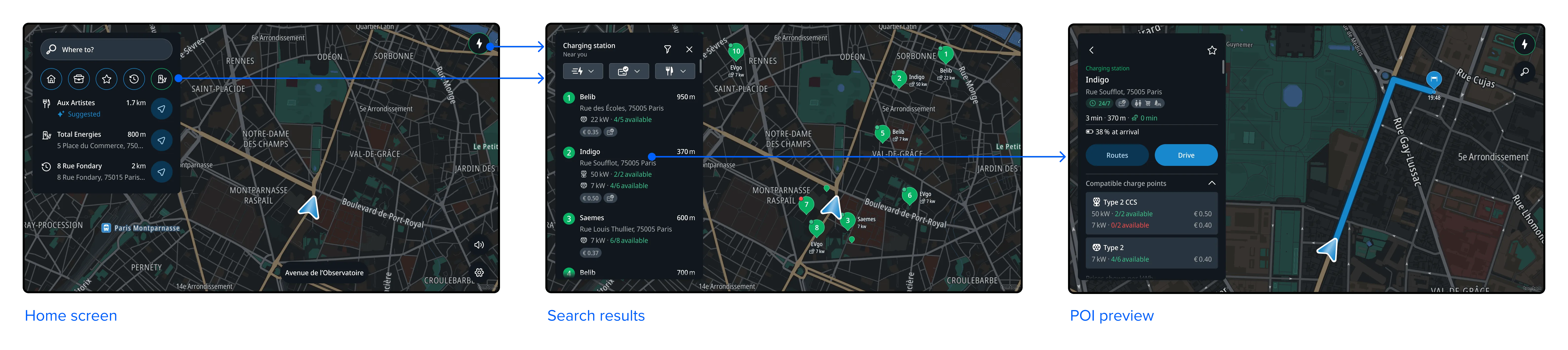
On the map, there is a dedicated Charging Finder button, which is also located in another steps in the app. By tapping this button, you can view Electric Vehicle (EV) Point of Interest (POI) results based on your current location, along your route, or near your destination, depending on whether you have a route or not.

Suggested destinations
In addition to the default suggestions, which display the most recently visited locations in the panel, the app will suggest predictable commute destinations based on the user’s schedule when a weekly pattern is detected.
These destination suggestions will be prioritized in the recent destinations section, with a “Suggested” label.
By tapping the Drive button on the right side of each item, the user will start navigation to these locations. Tapping the list item outside the button will open a location preview panel for this destination, where the user can confirm the location details and route before starting navigation.

Shortcut strip
Shortcut strip is a row of entrypoints in desintation entry panel, containing access to Home, Work, Favorites locations, Recents locations, and the most common POI categoriy.
-
Home: If user has not set their Home location, tapping this element would initiate a search flow where user is able to find a location and set it as a Home location. If user has the Home location already defined, tapping this element would start navigation to that location.
-
Work: Similarly, to Home location, if user has not set their Work location, tapping this element would initiate a search flow where user is able to find and set location it as a Work location. If user has the Work location already defined, tapping this element would start navigation to that location.
-
Favorites: tapping this element will open a panel where user can view, edit or delete their locations saved as Favorite ones.
-
Recents: tapping this will open a panel where user can view all recently visited locations, with options to set as Favorite, or delete them.
-
POI category: tapping this starts a search by category, based on priority and vehicle type. By default it’s charging station for EVs, and for ICE and PHEV cars that’s gas stations. This element can be adjusted by user, but can be configured to any other POI category if needed.
Flow
Initiating the navigation to Home location from Shortcut
On tapping the Home shortcut, if the location is already set, user will trigger navigation to that place. Same flow would happen if user would tap on the Work shortcut.

Initiating the navigation to the recent from desintation entry panel
On tapping the Drive button in recent destination element, user will trigger navigation to that place. The same applies for destinations that are suggested to the user.

Searching for a charging station, from the shortcut strip and charging finder button
On clicking the shortcut, a search for charging stations is triggered. Selecting a result from the list or the map brings the user to the location preview panel for that location.