Manual map management
Request accessOverview
Manual map management allows drivers to take direct control of their map data. Users can manage downloaded maps for specific geographic areas, including adding, removing, or updating individual regions as needed.
Disclaimer: manual map management is not available in the evaluation version.
Manage maps
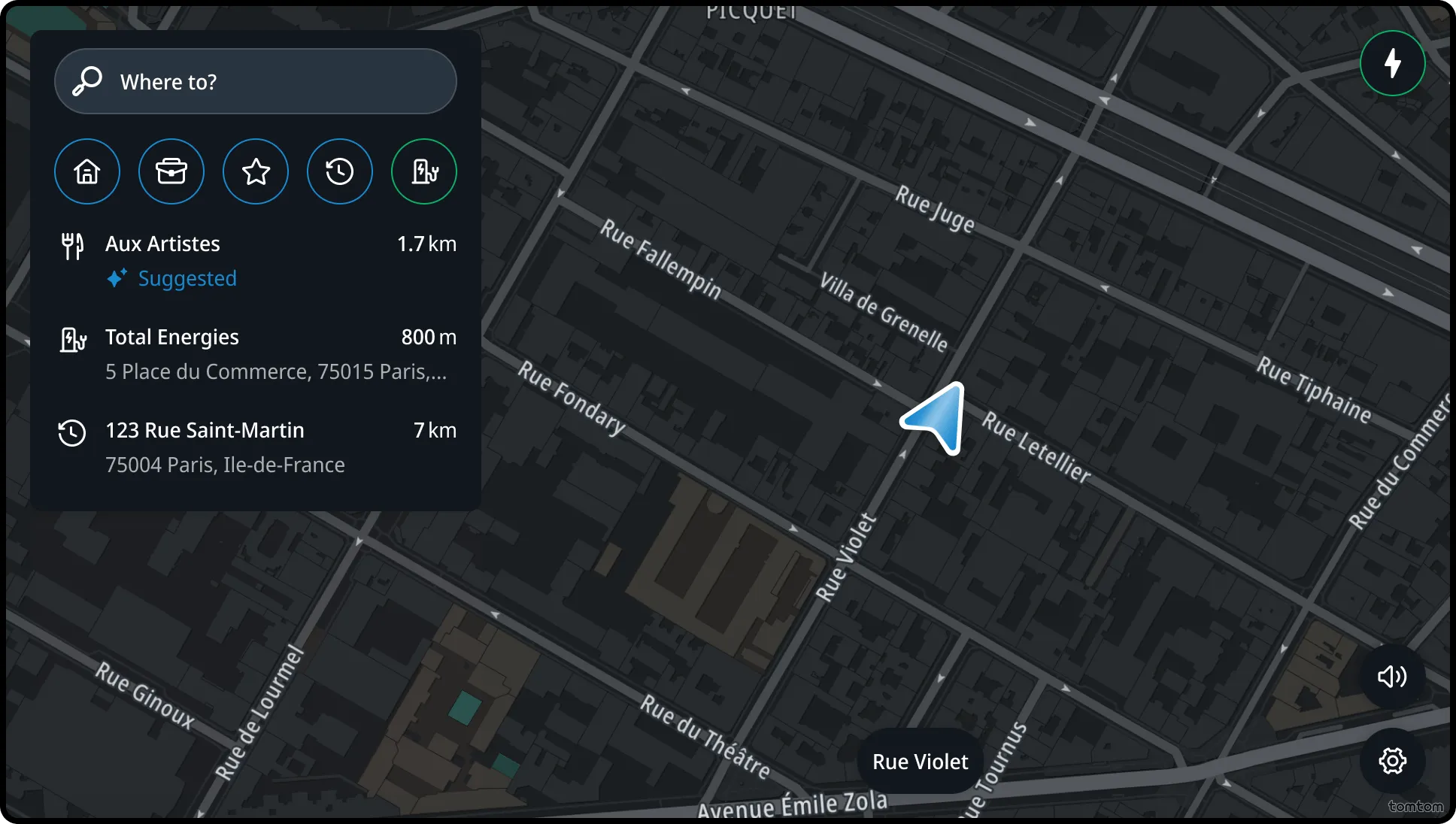
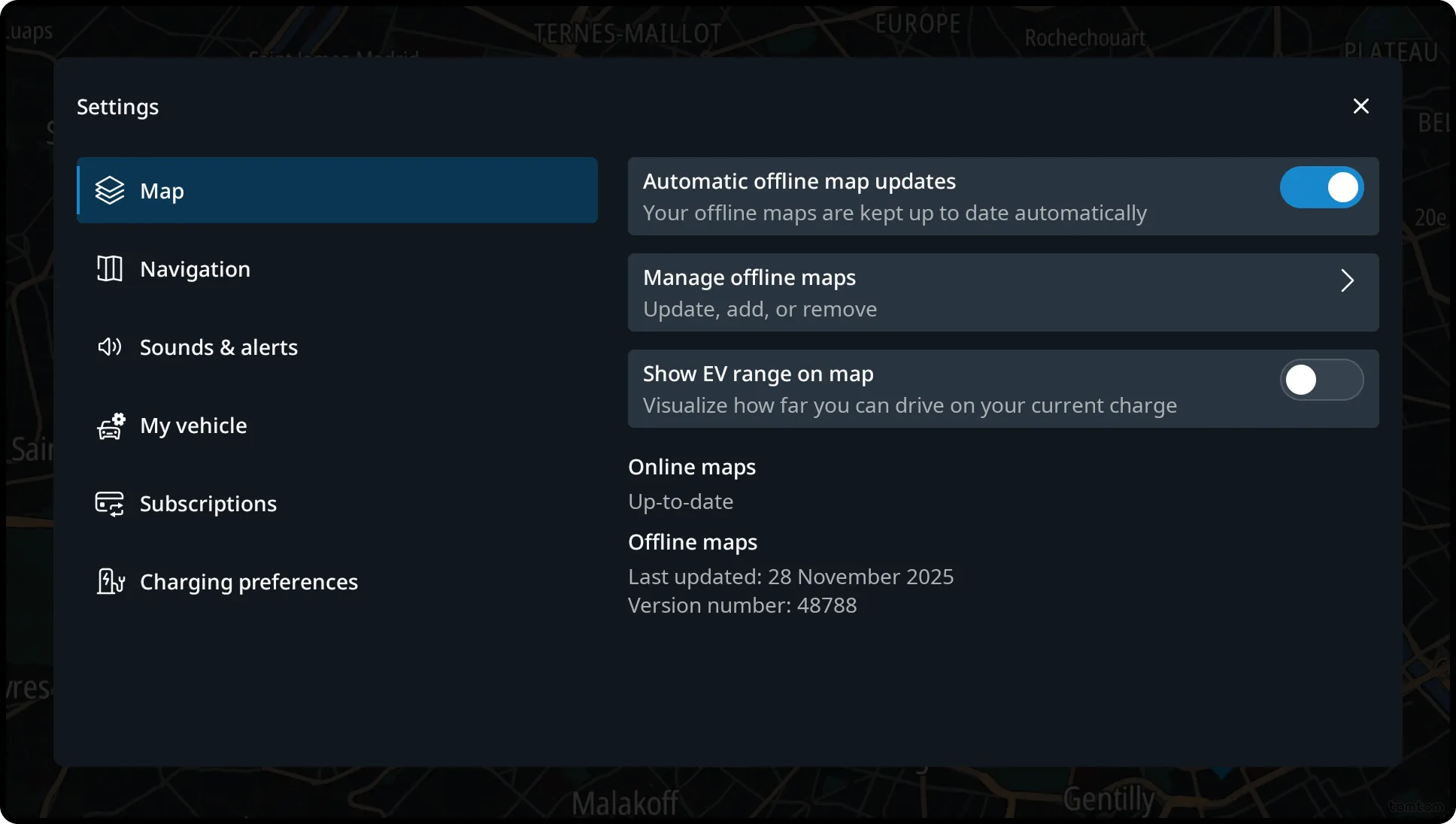
Users can manually manage maps from the navigation settings. Maps are grouped into sets that represent familiar geographic areas, such as North America or countries in other regions.
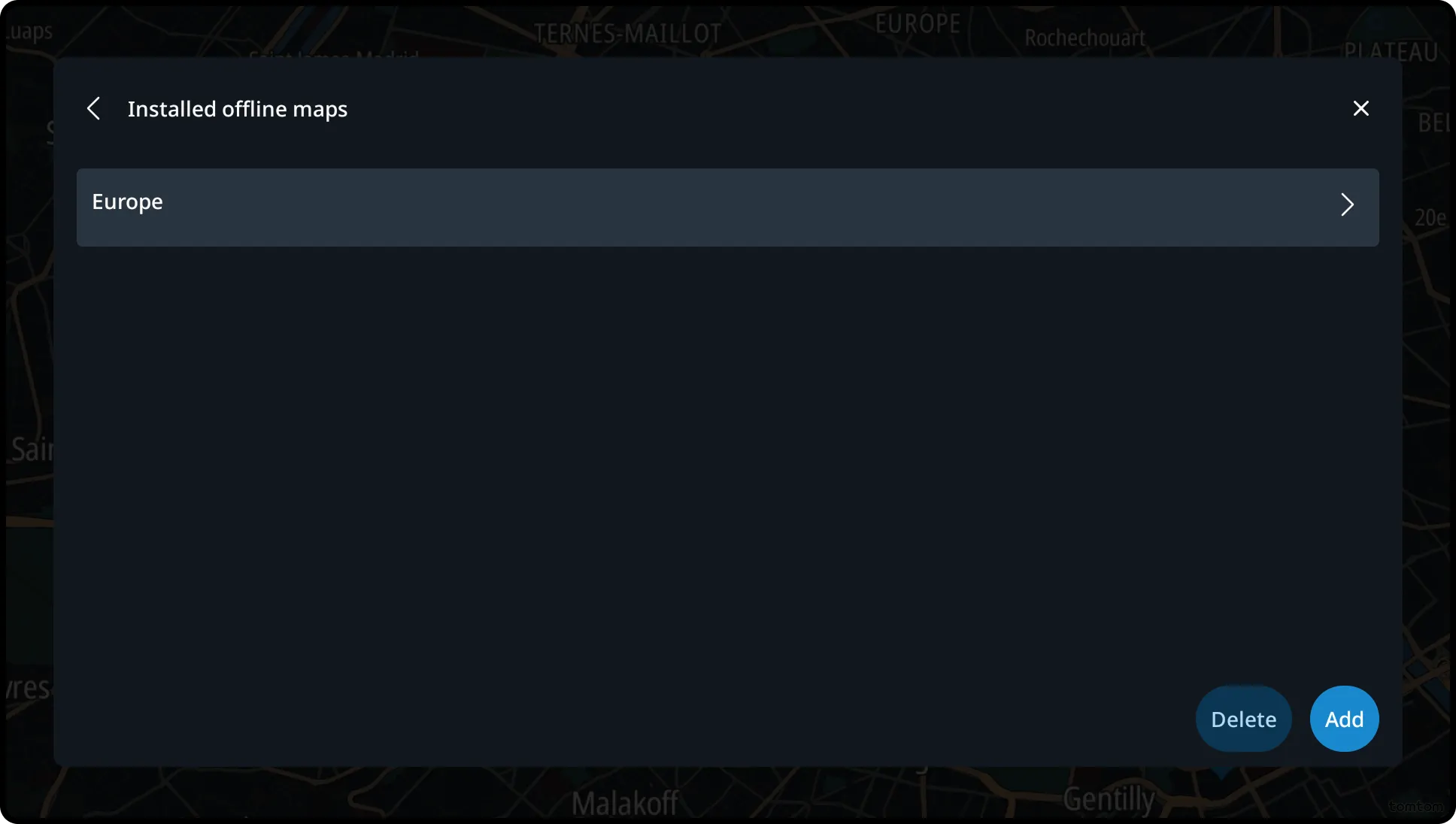
Installed maps
Maps are organized into two categories:
- Installed region sets. Maps that are currently downloaded and available on the device.
- Installable region sets. Maps that can be downloaded and installed manually.
The availability and speed of downloads depend on the type of internet connectivity configured by the OEM. Downloads may not begin immediately if the connection is unstable.
Avoiding distraction
To minimize driver distraction:
- Error notifications are only shown if they impact driving.
- Other error messages are presented as banners or in the notification center.
- Success messages are only displayed when the user is not driving.
Connectivity
Manual map management requires a stable internet connection. Connectivity settings must be configured elsewhere in the system.
A region showing an available update may include the user’s current location, even if the broader region set has not yet been fully updated.
Installed maps and updates
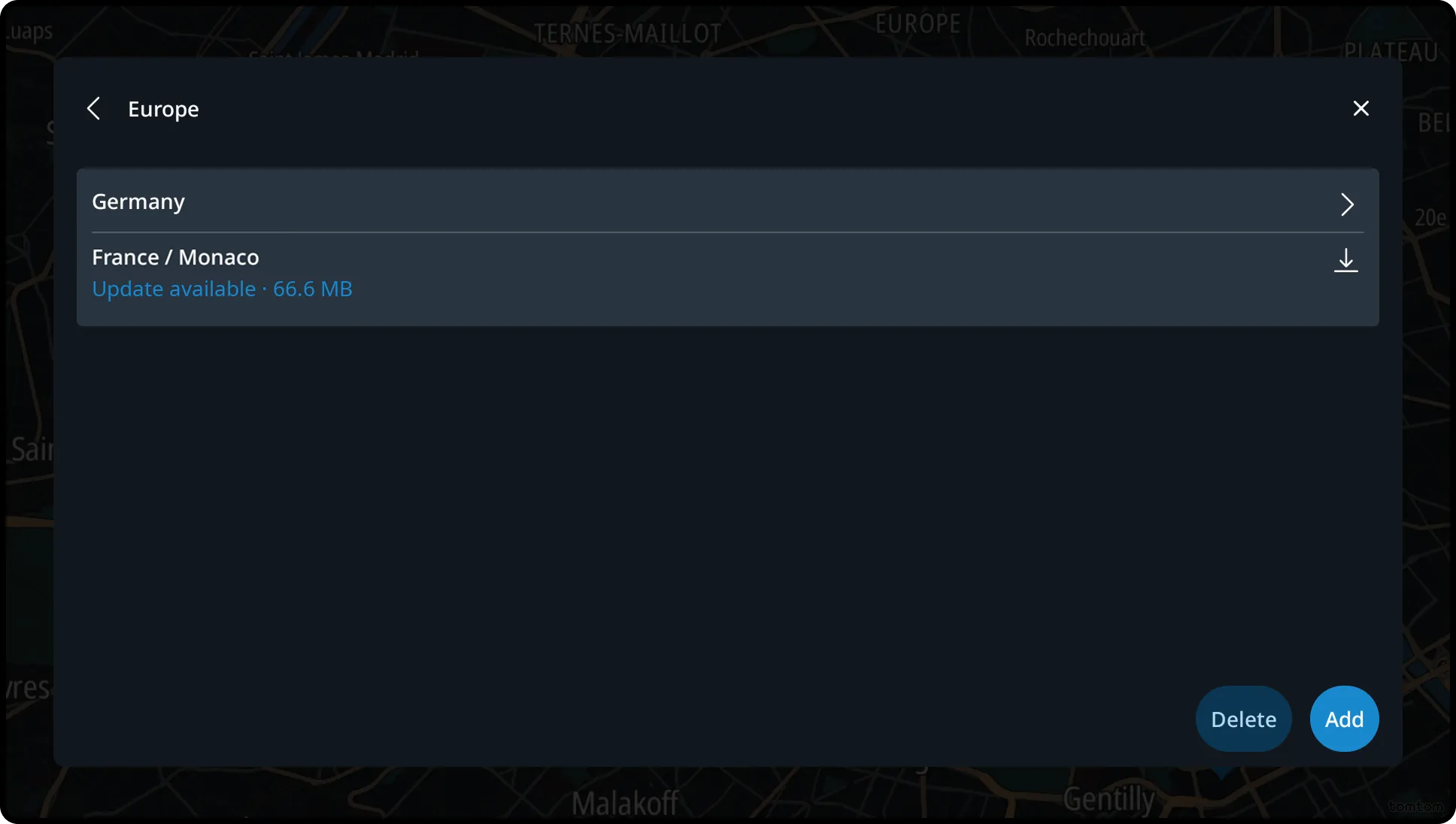
The Installed Maps page shows all currently installed map regions, organized by country — or by state in the USA and Canada. Each entry displays the age of the map data for that region.
When connected to the internet, the system indicates whether updates are available or if maps are up to date. When offline, the page displays the age of the most recently available map data.
To optimize data usage, updates may only apply to parts of a map region.
The displayed date reflects the oldest portion of the region’s map data. Depending on the connectivity type configured by the OEM, drivers can add, remove, or update maps as needed.
Manual map updates
The manual updates feature allows users to keep their maps up to date by checking for available updates.
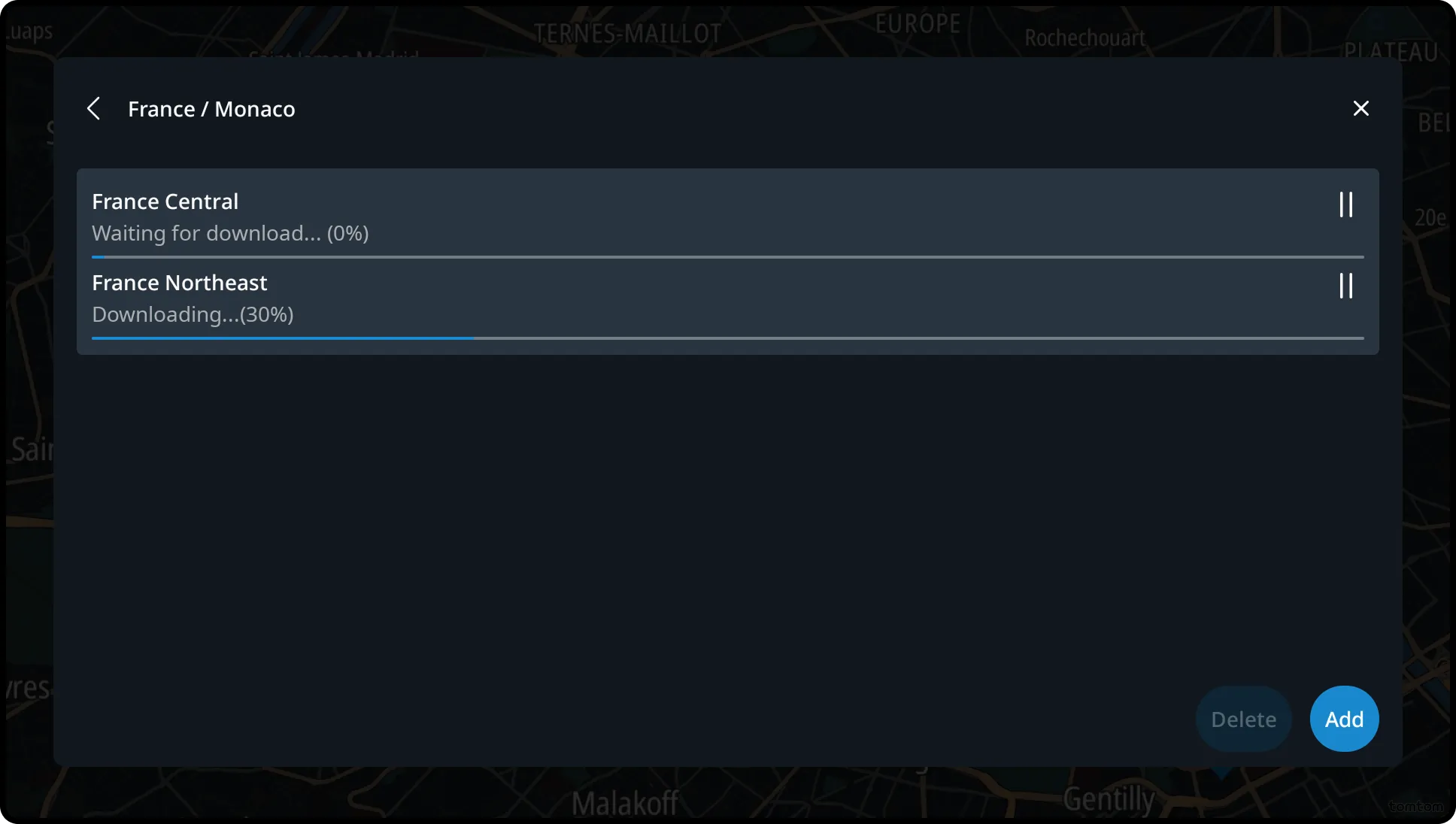
If updates are found, they appear in the Installed Maps list, and the user can start the update process with a single tap. Once an update begins, a progress indicator shows the current stage (e.g., Downloading…, followed by Installing…).
Users can pause the download at any time; partially downloaded data remains valid and will resume when connectivity allows. After completion, the system displays a status indicating that the maps are up to date.
Adding maps
Vehicles typically come preinstalled with all necessary maps. However, if maps have been removed—or if no maps are installed—users can manually add them.
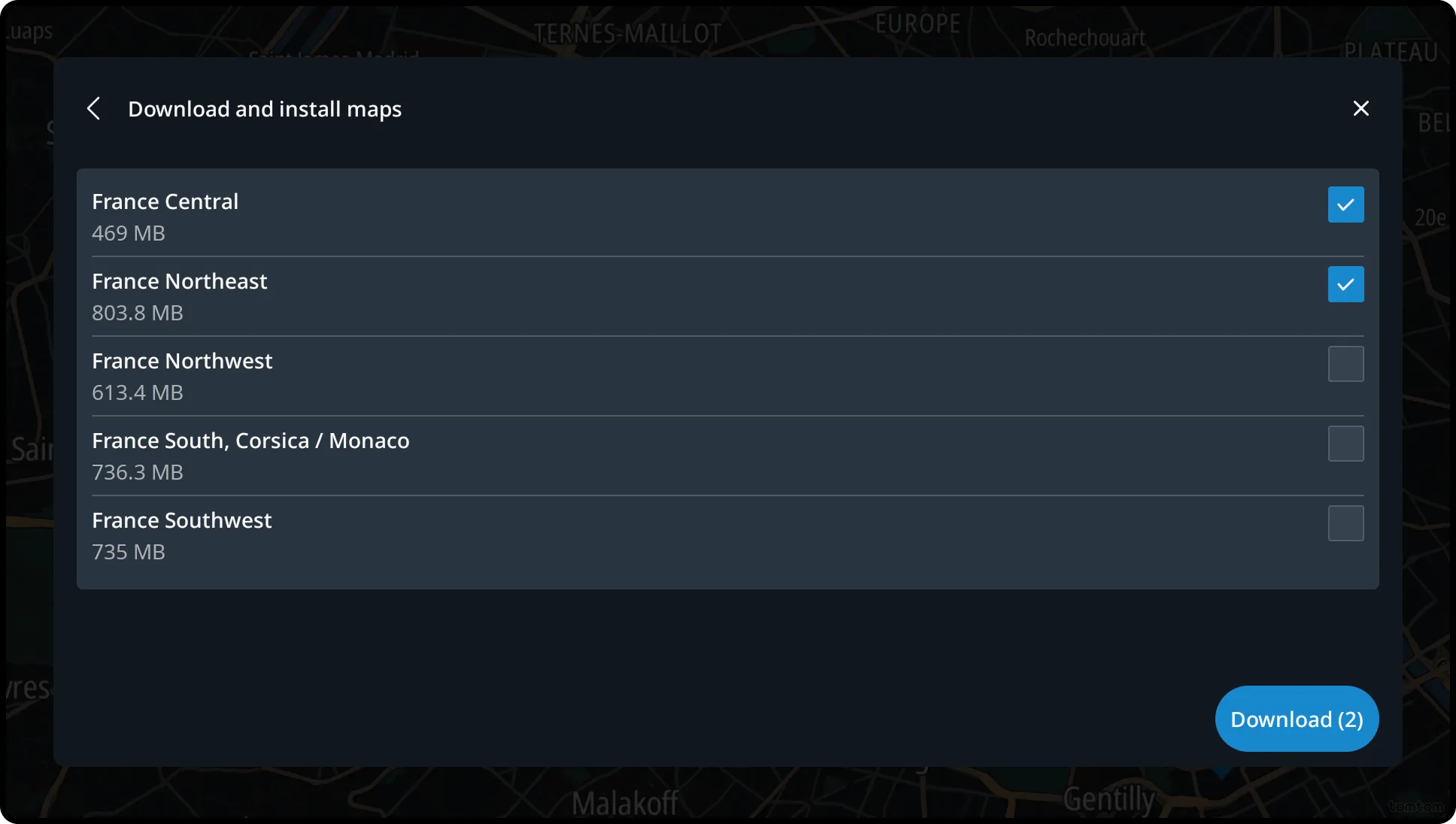
Tapping the Add button on the Installed Maps screen initiates a check with the server and displays all available installable maps. Because this check requires an active internet connection, users may need to wait until connectivity resumes.
If all available content is already installed, a banner informs the user that no additional maps are available.
Once connected, the system presents a list of eligible map regions not currently installed, organized alphabetically by country or state. Each item shows its download size. Users can select multiple maps and tap the Download button to begin installation. All selected maps are installed sequentially, with visible download progress indicators.
After installation, the system refreshes and applies the new map content. This may require the user to remain on the map management screen briefly. Once completed, the user is returned to the Installed Maps screen, where the new content is ready to use.
Removing map content
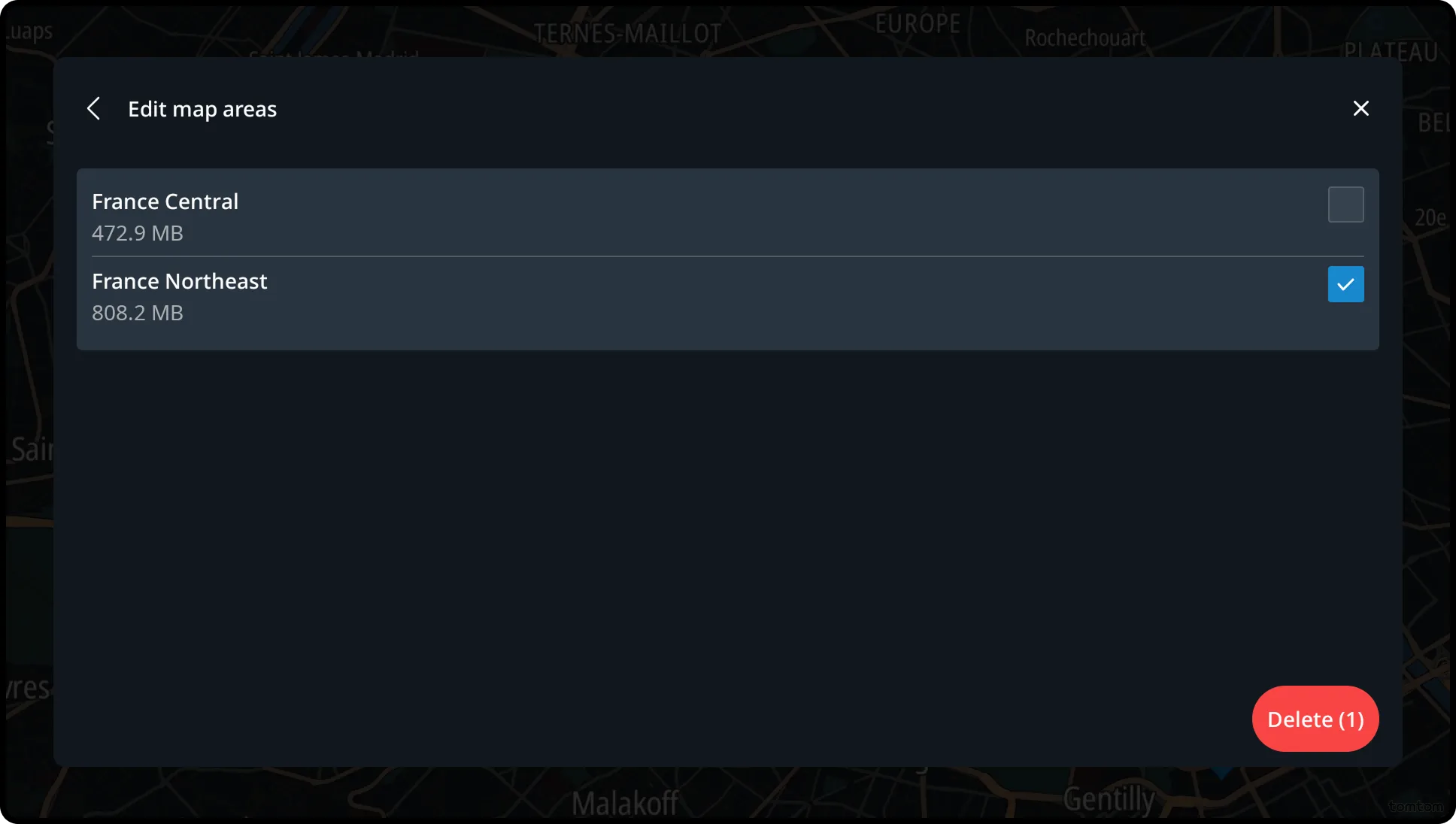
To remove map content, tap the Remove button at the bottom of the Installed Maps list. Users can delete multiple regions at once. This action also works without an internet connection.
The system prevents users from deleting essential maps. These include installed regions currently in use—such as the user’s current location (based on GPS) or maps needed for an active route.
While the system checks which maps are essential, a spinner and message indicate that the system is working. During this time, the Remove button is disabled.
Once the check is complete, the list of installed maps is shown. Essential maps are grayed out.
Users can select multiple maps to remove; the Remove button displays the number of selected items. If needed, users can drill down into a region to select and delete smaller areas. Tapping the Remove button deletes all selected maps without further confirmation.
After the removal process:
- The Installed Maps screen refreshes.
- If no maps remain, the user is directed to a screen indicating that navigation is currently unavailable.
- The selected checkmark confirms the deletion, and the updated list of available maps is displayed.
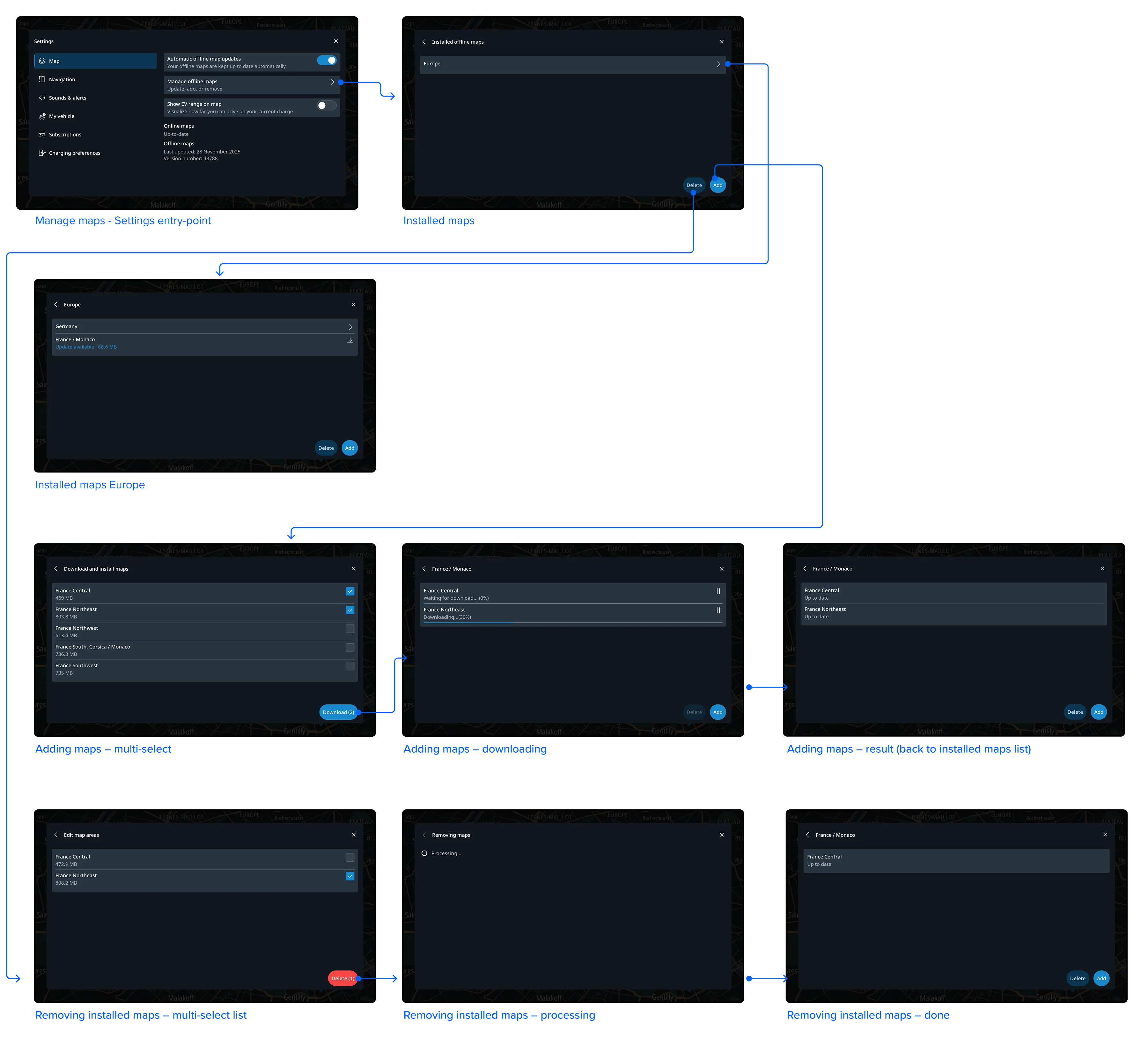
Flow
Basic manual map management flow
Updating, adding, and removing maps.