
Settings
Request accessOverview
In the Navigation application, users can quickly access settings to tailor how routes are planned, displayed, and guided.
Map
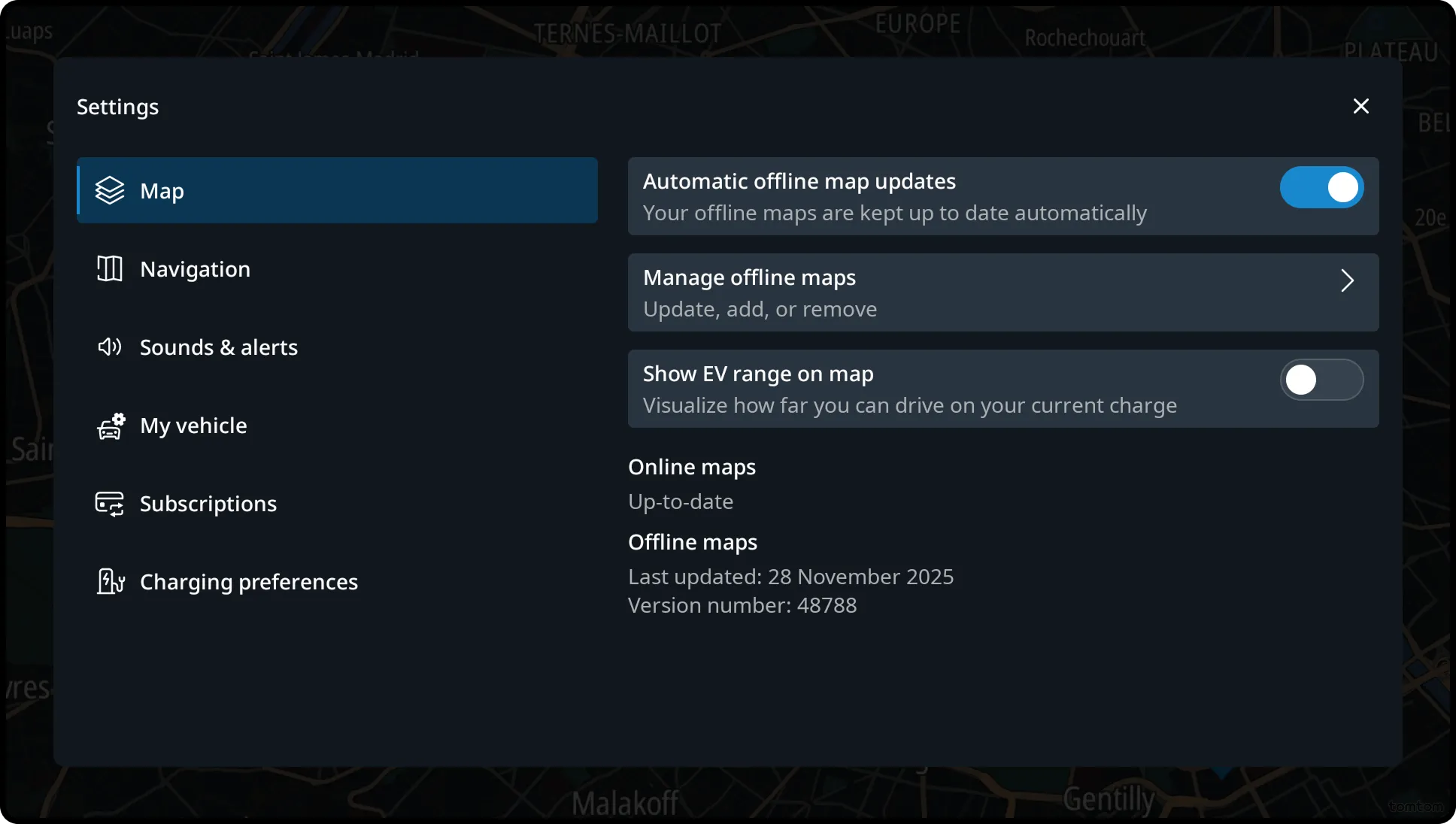
This section contains all settings related to map management. When the map is in online first, users can:
- Toggle automatic map updates on or off.
- Download or remove maps.
At the bottom of the page, two indicators display the status of online and offline maps.
For online maps, users will see whether the online maps are up to date, or if they are not subscribed for updates. A label below indicates the status of offline maps, including the last time they were updated and the version number.
Navigation
This section contains all settings that define how routes are planned. Users can:
- Enable automatic rerouting when a better route becomes available.
- Select preferred route types (for internal combustion engine vehicles).
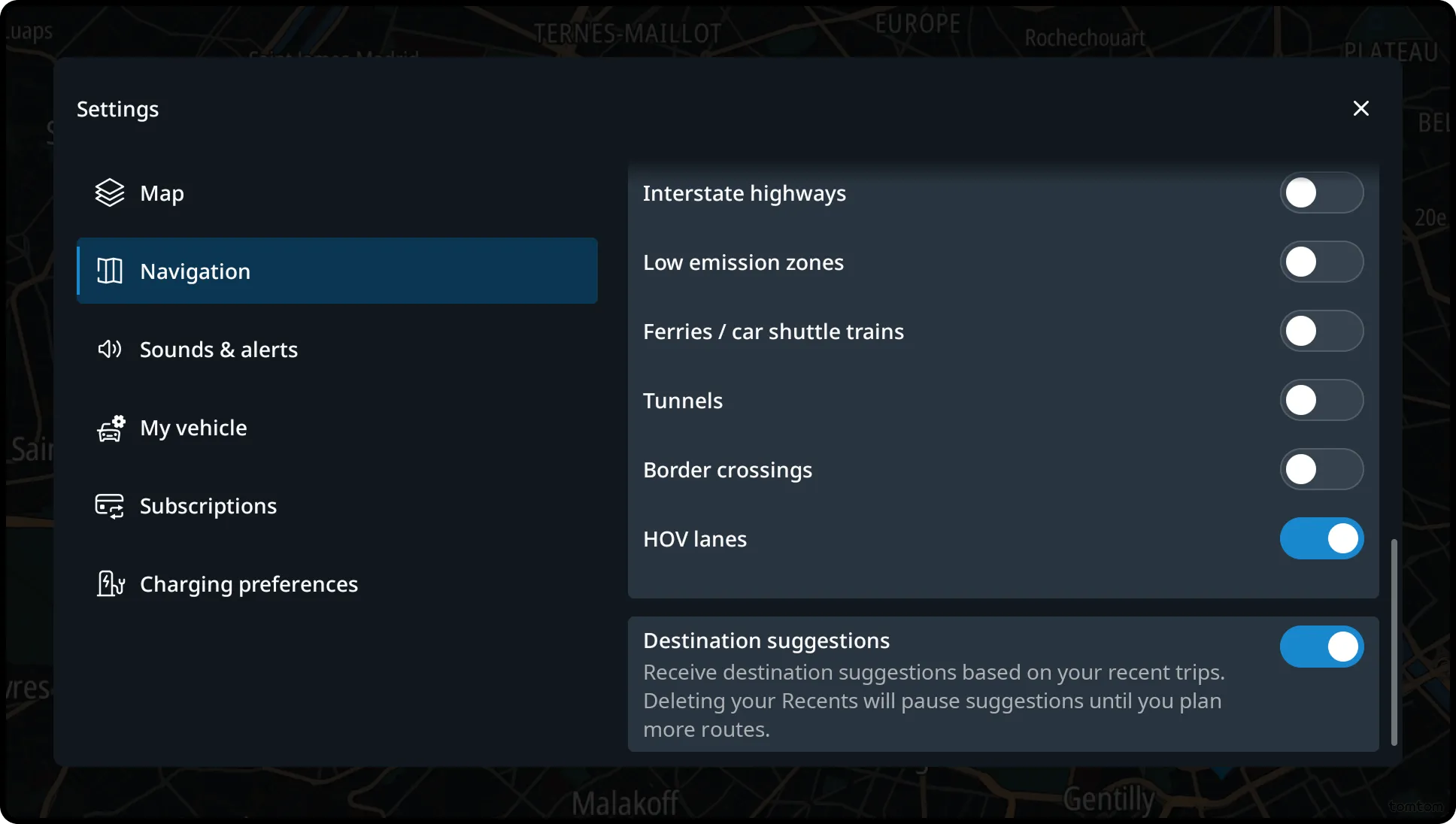
- Specify route preferences, such as avoiding tolls, unpaved roads, motorways, ferries/car shuttle trains, tunnels, border crossings and HOV lanes (US-only).
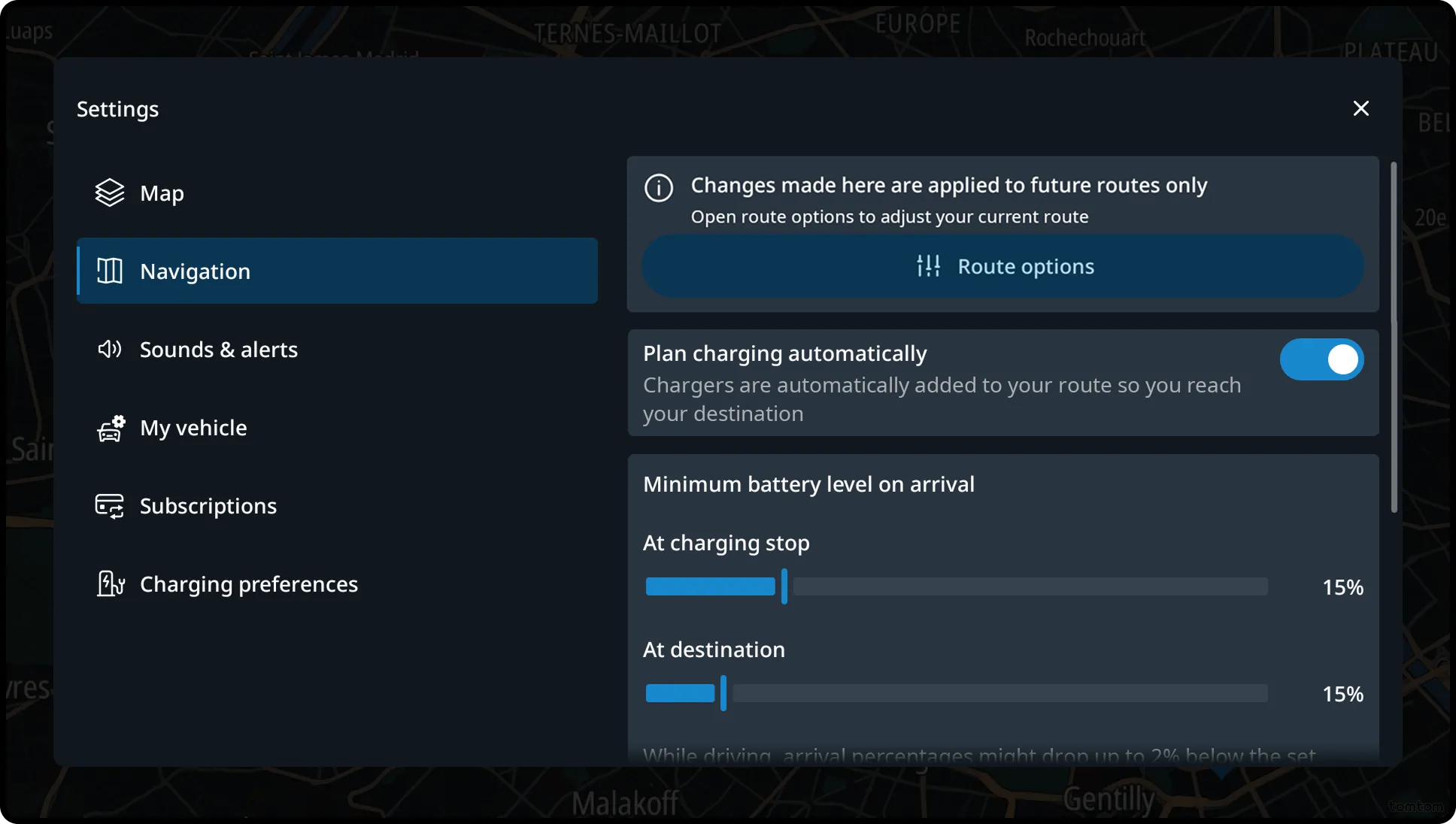
- Enable automatic charging planning, which adds charging stops along the route as needed (for electric vehicles only).
- Set a default minimum state of charge for both charging stops and the final destination (for electric vehicles only).
- Enable destination suggestions based on their recent trips.
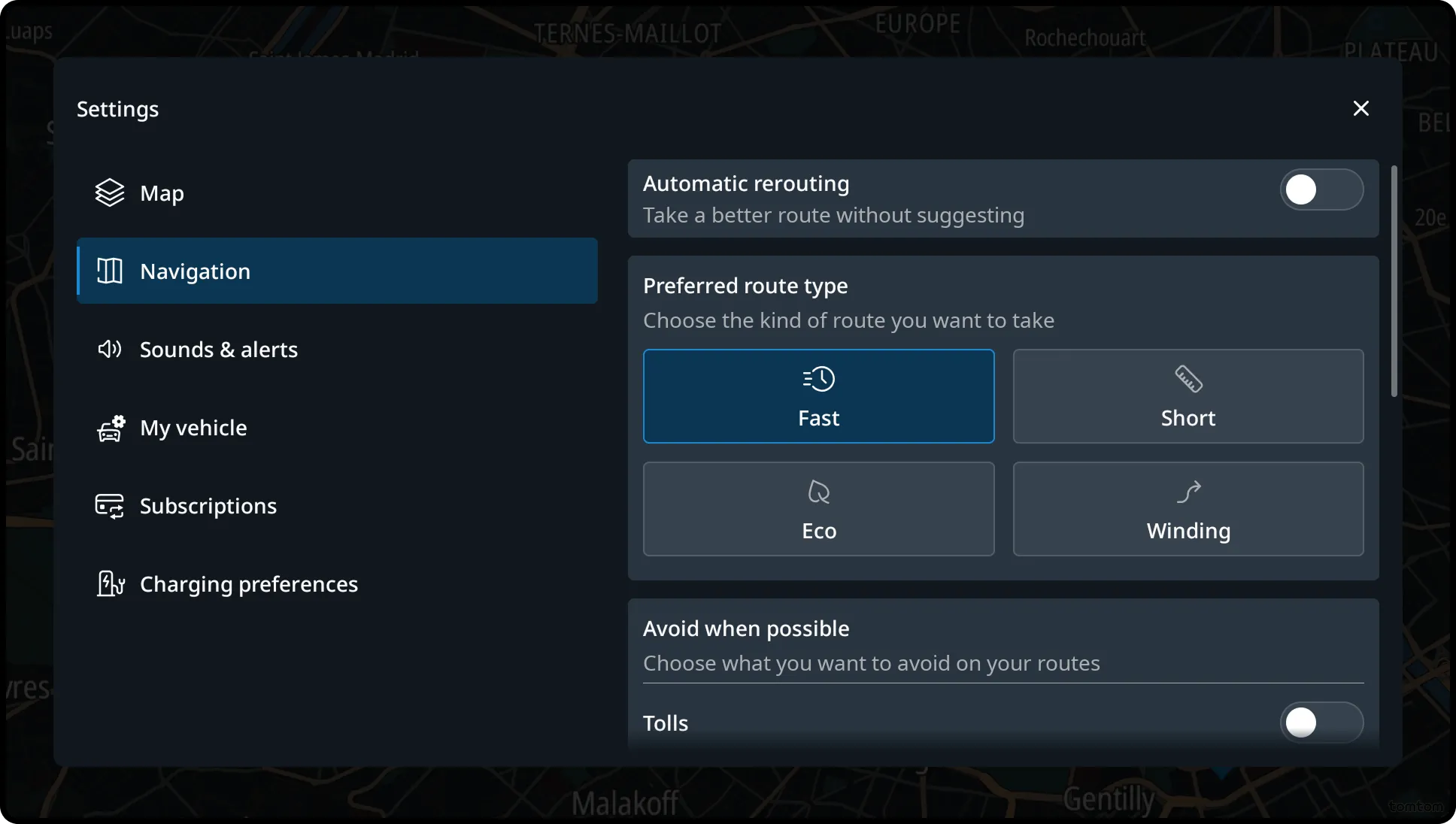
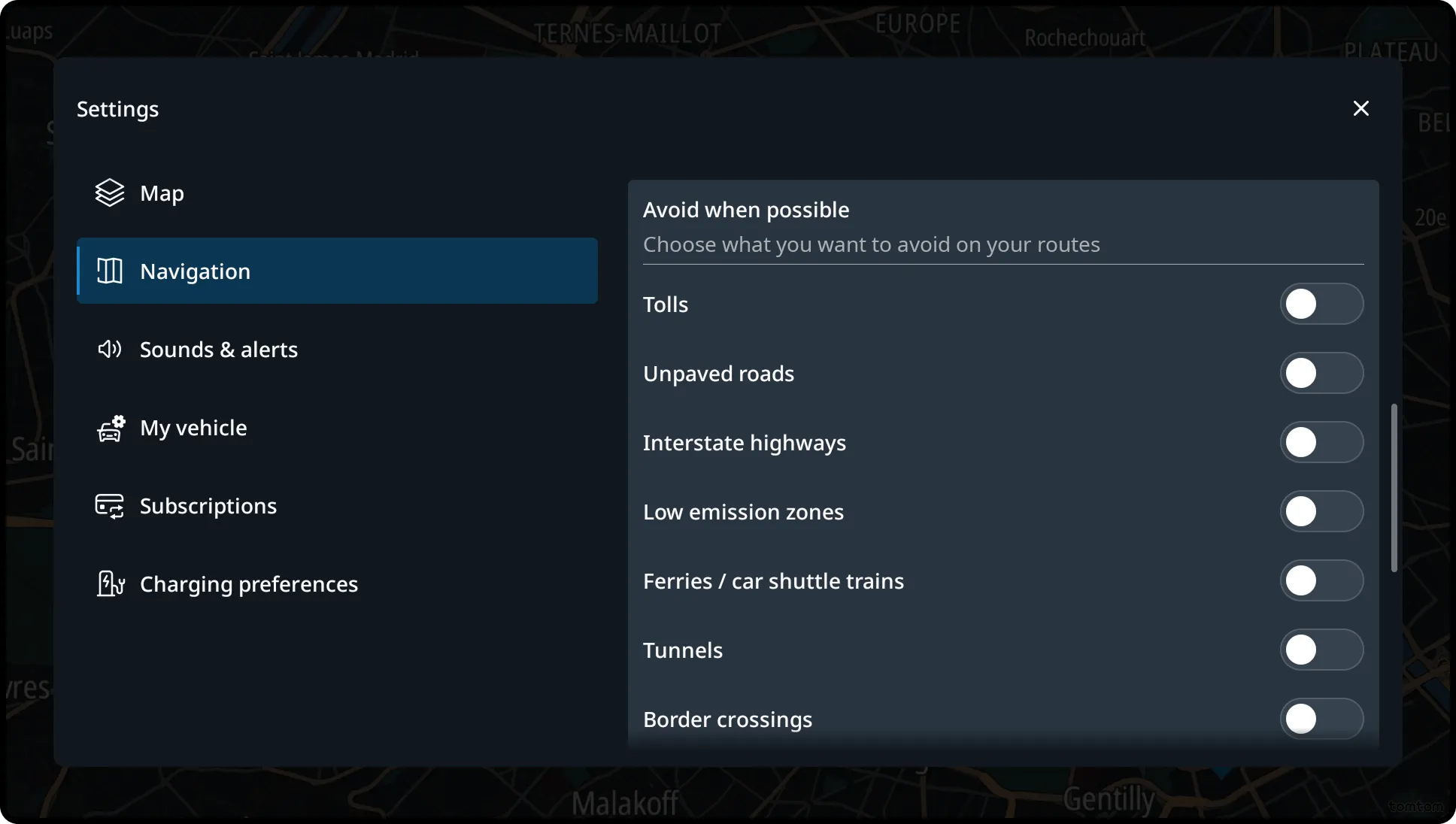
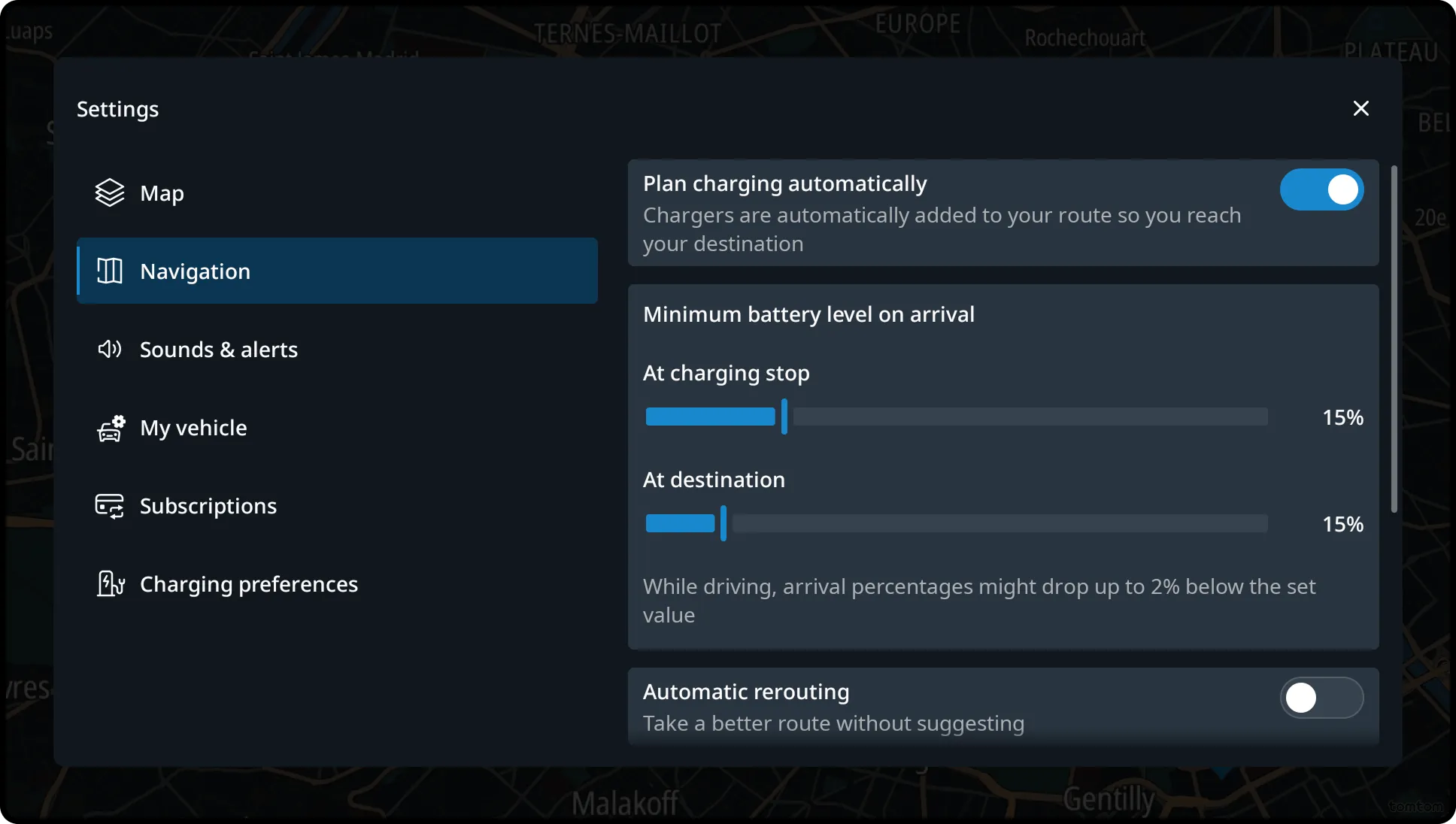
If the Navigation page is opened while an active route is in progress, the system displays a banner informing the user that the current route will not be updated from this page. A shortcut link is provided to quickly access the Route options and make adjustments directly.
Sounds and alerts
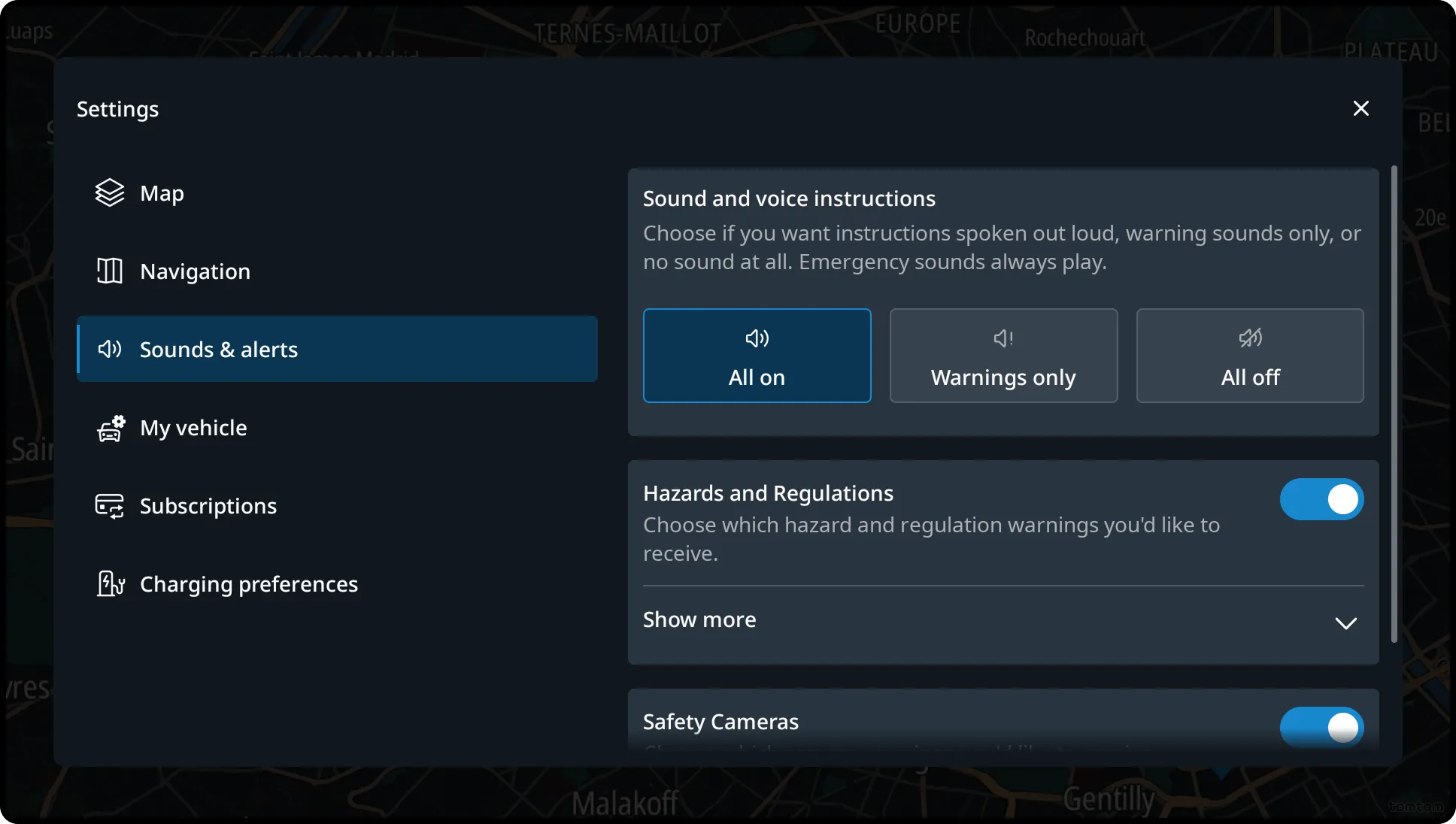
This section allows users to customize how alerts are delivered during navigation. Users can choose between:
- Alert sounds with spoken messages and guidance.
- Alert sounds only.
- No alerts. For each type of alert, users can individually choose to hear or mute it.
My vehicle
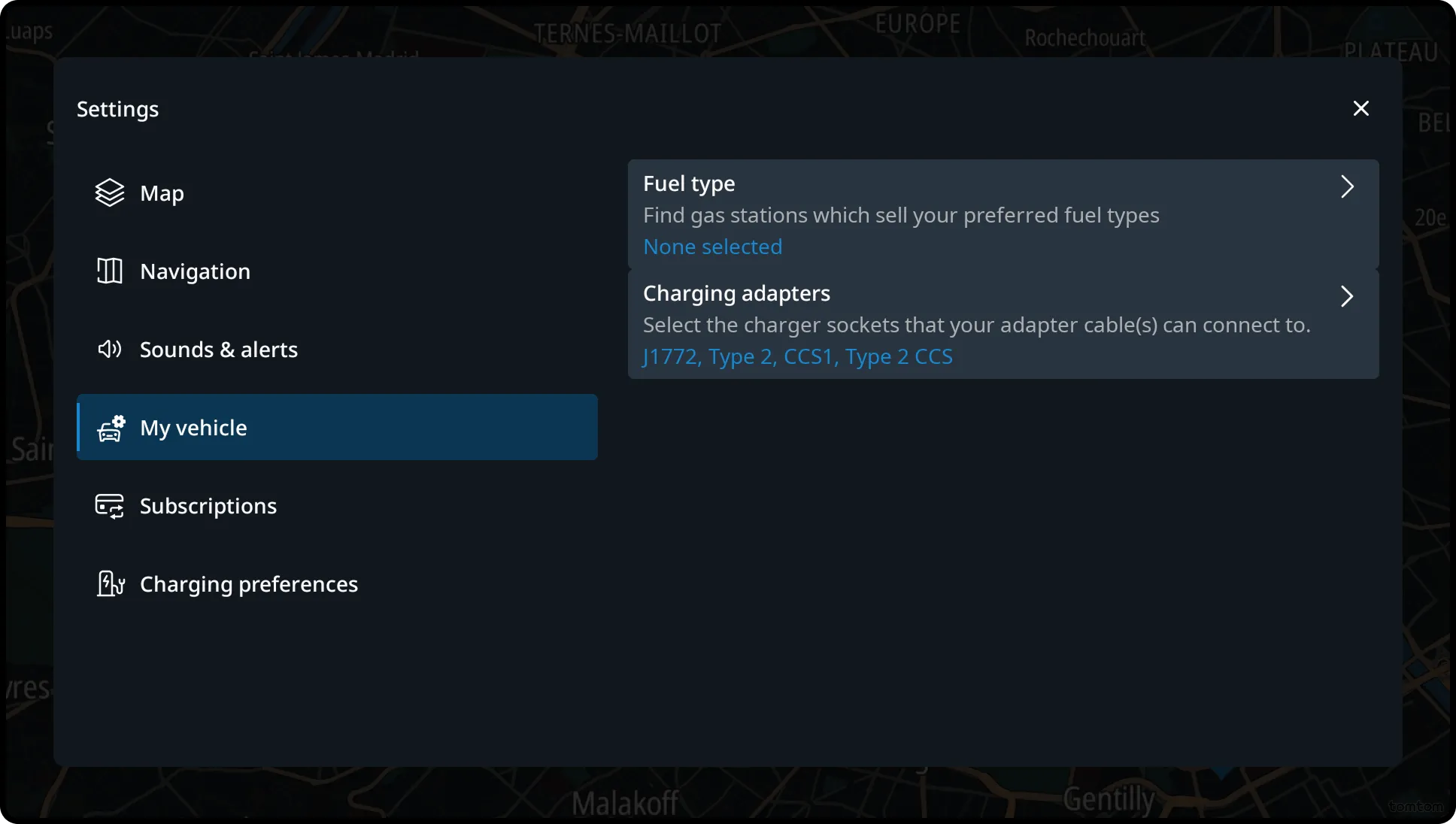
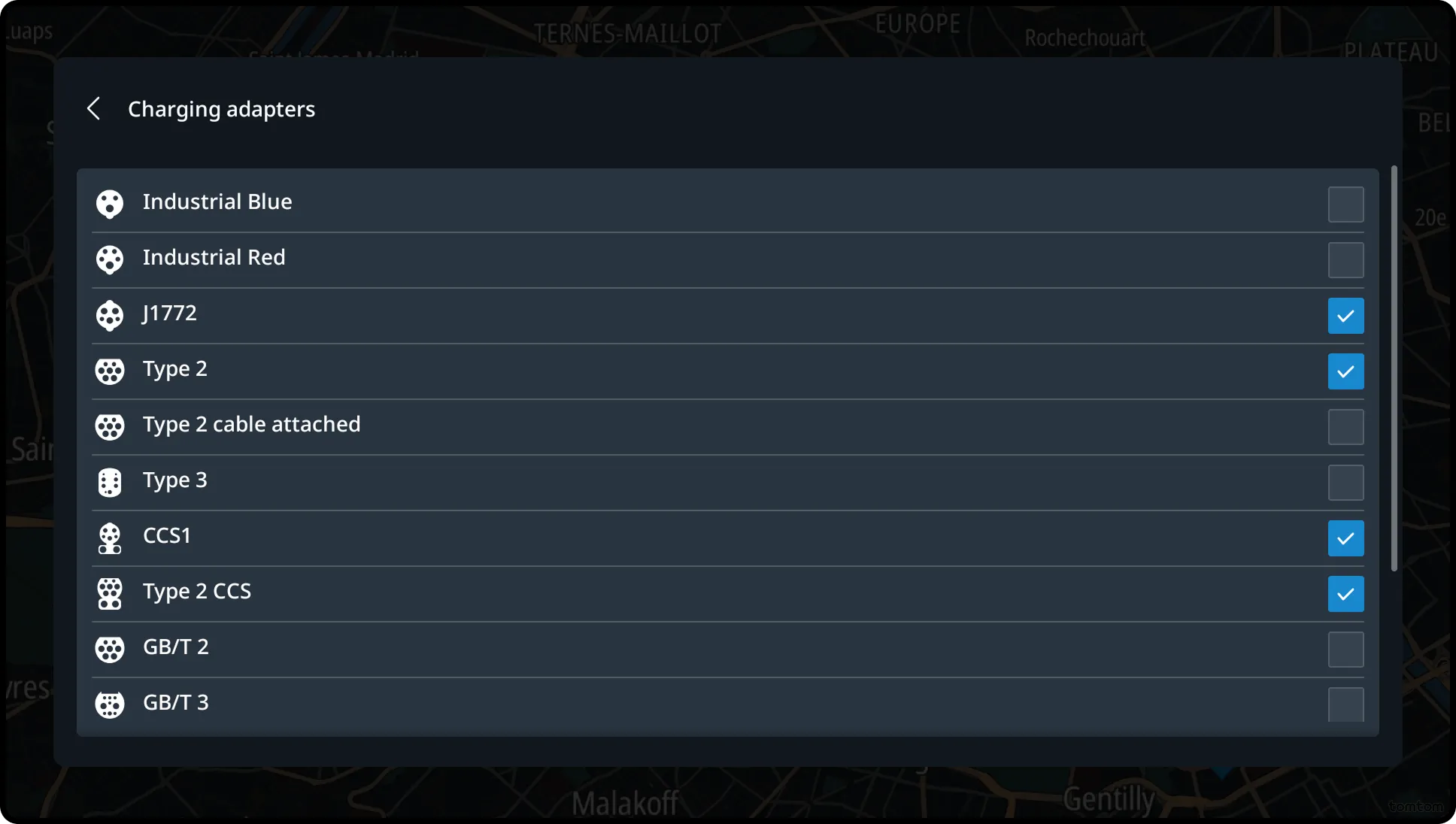
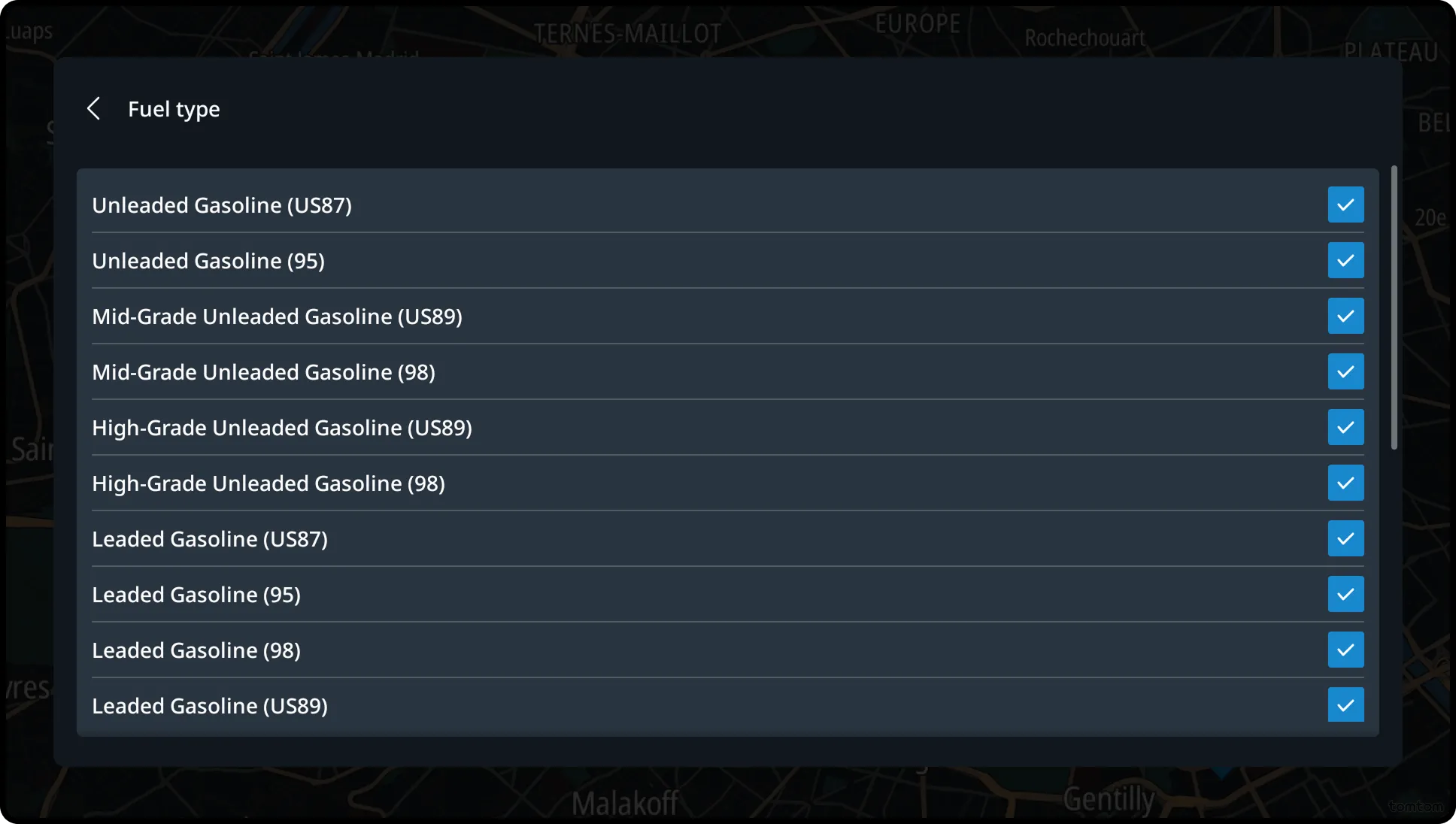
In this section, drivers can set preferences related to their vehicle’s fuel and charging configuration.
- For ICE and PHEV vehicles, users can select preferred fuel types to filter fuel station results accordingly.
- For EV and PHEV vehicles, users can select the charging adapters they have, ensuring compatibility with available charging stations.
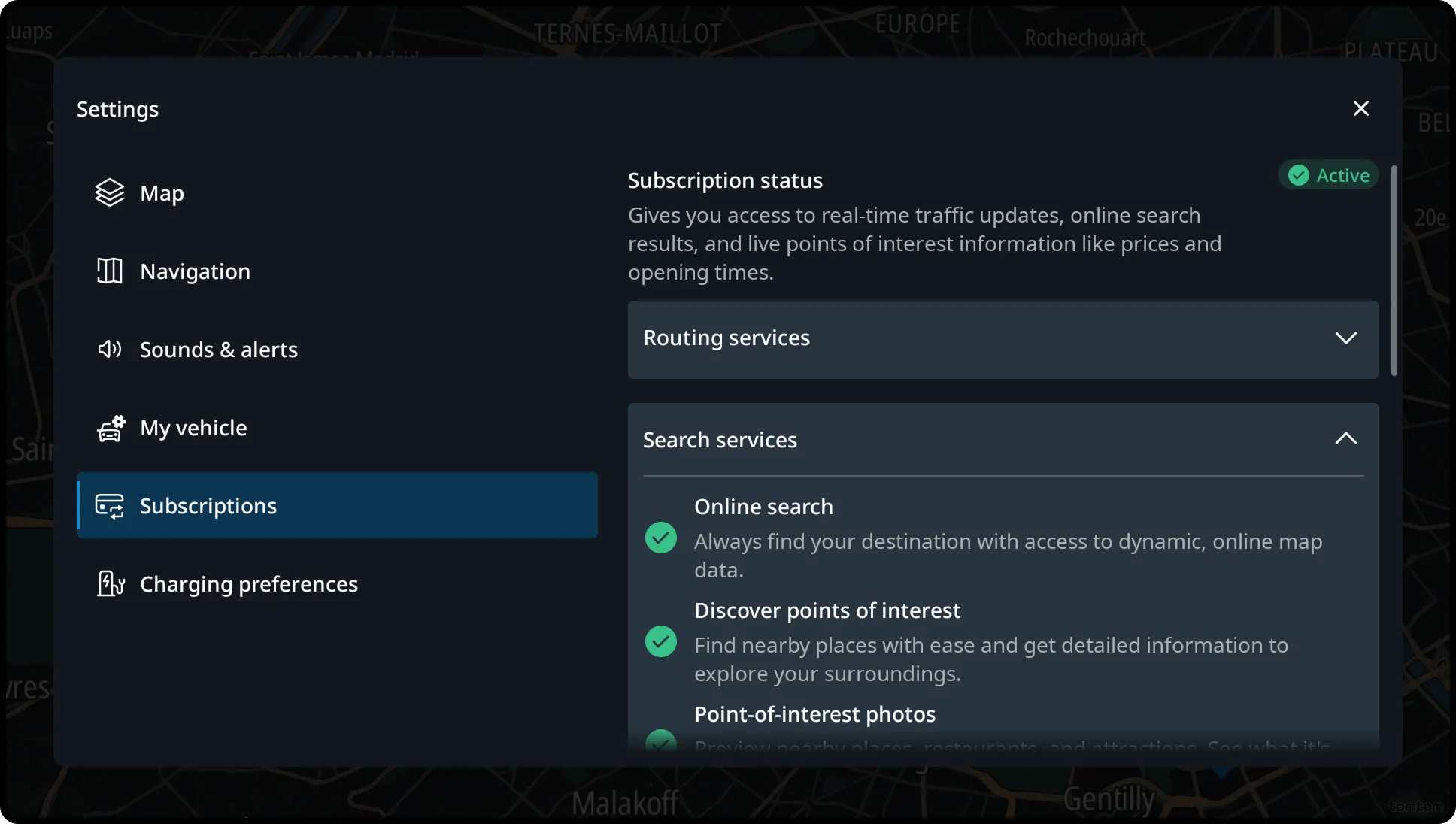
Subscriptions
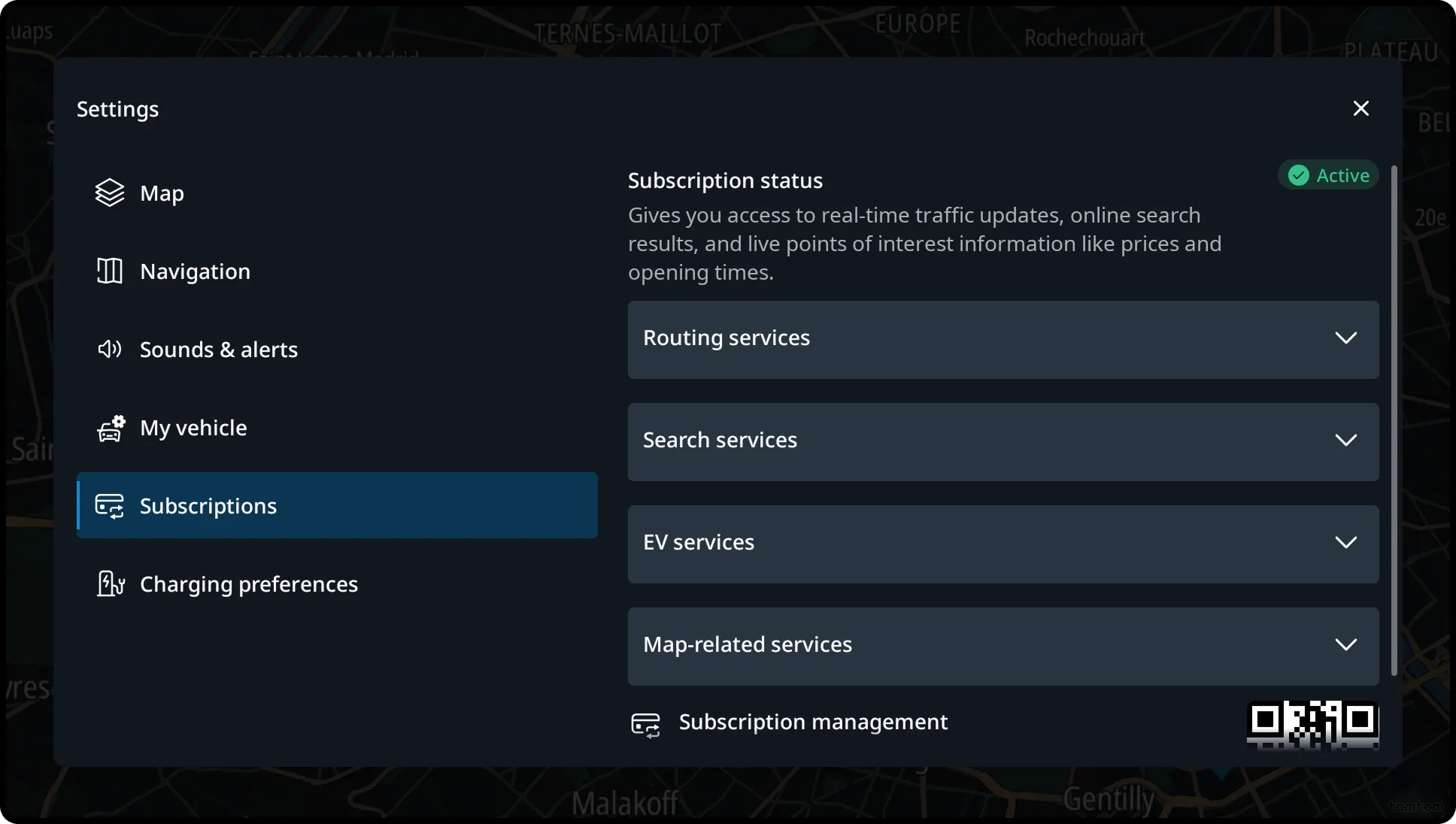
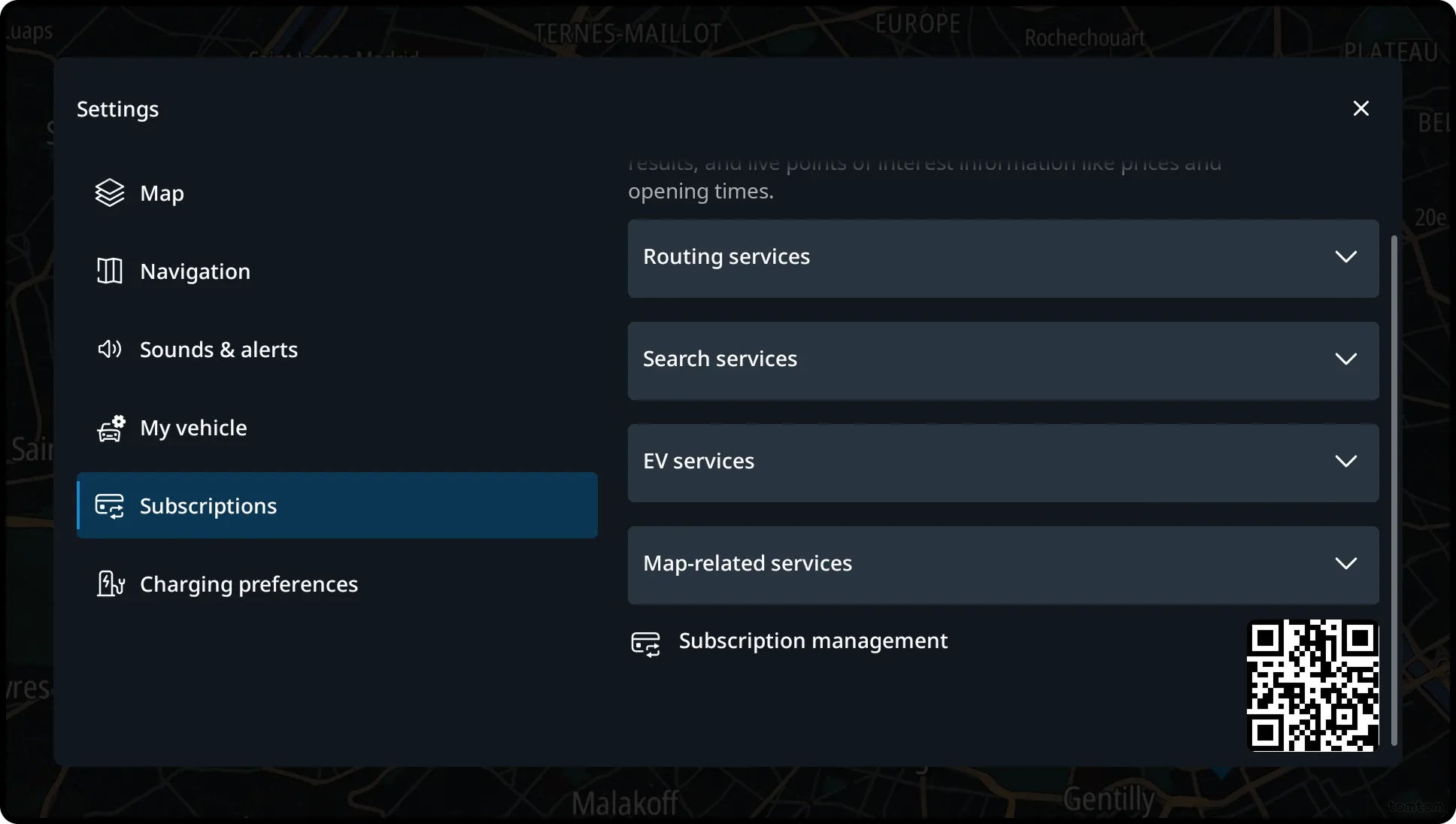
In this section, drivers can manage their subscription and related services. Users can:
- Check the status of their subscription and individual services.
- Learn about the benefits included in their current plan.
- Extend an expired subscription.
- Identify if certain services are unavailable due to connectivity issues or missing system permissions.
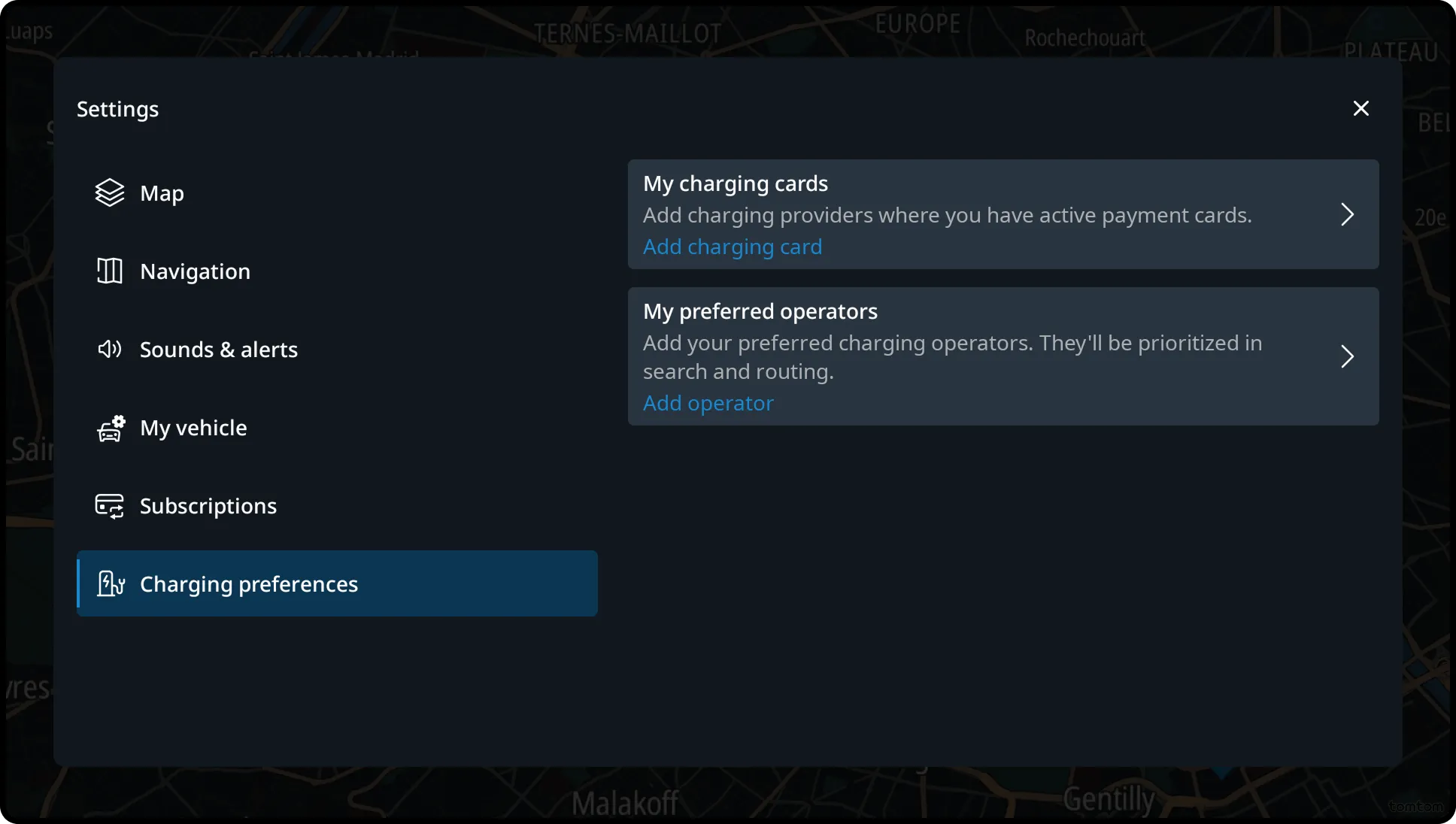
Charging preferences
In this section, users can customize their EV charging experience by:
- Adding charging providers for which they have an active payment method.
- Selecting preferred charging operators, which will be prioritized during charging station search and route planning.
Flows
Changing a setting
Navigation settings can be accessed from both the home view and while driving, via the Quick Settings panel. Tapping the settings button opens a full-screen view, with a section menu on the left and the selected settings panel on the right.
